Scheduling
Scheduling
Scheduling moves a draft into the publish queue with a specific date and time. PostNext then publishes the post to the selected channels at that time without any further action from you.
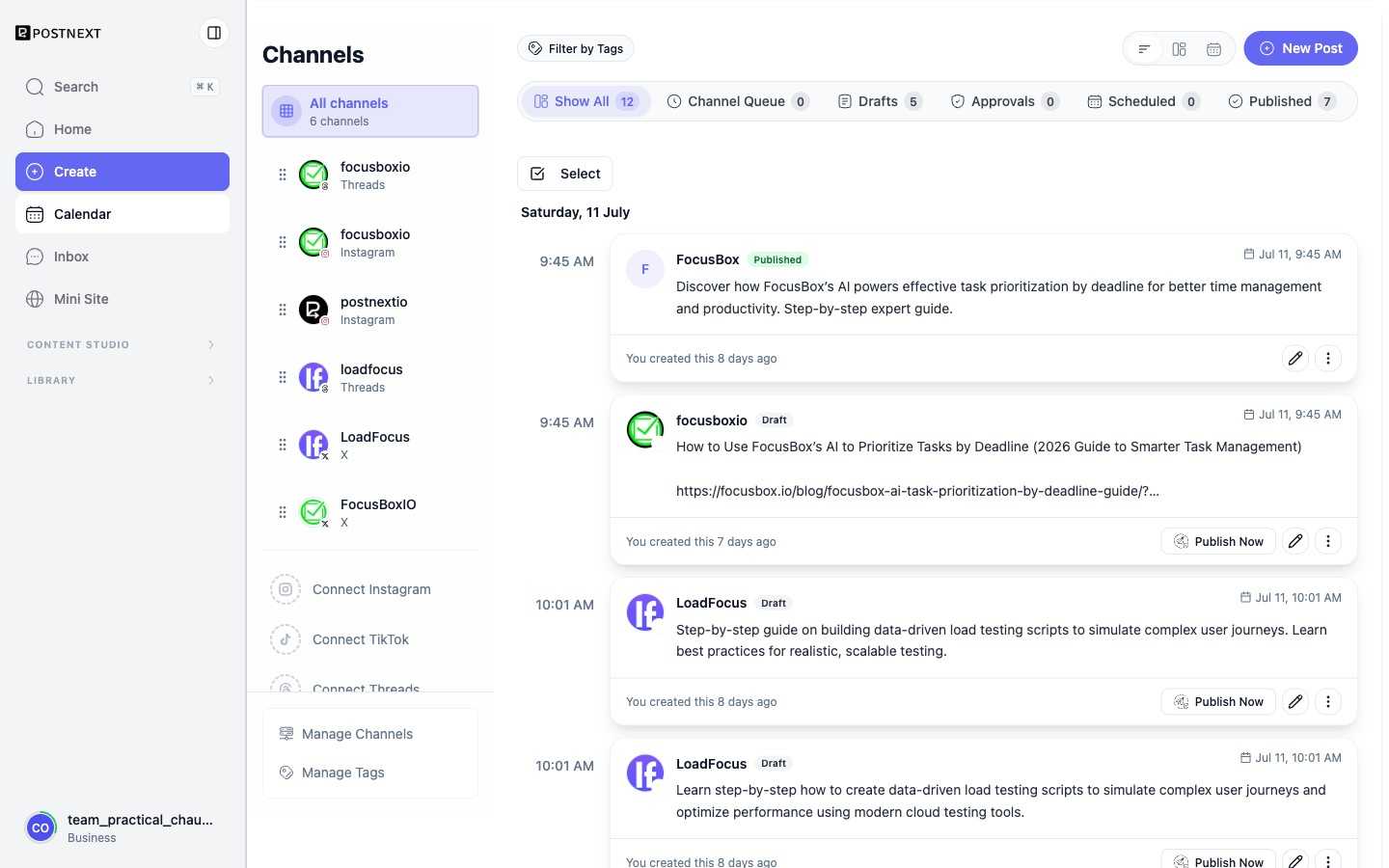
The Publish screen is where scheduling happens. Your connected channels sit at the top, and the posts area below can be switched between List, Grid, and Calendar views. Status tabs across the top, Show All, Channel Queue, Drafts, Approvals, Scheduled, and Published, let you filter to exactly the posts you want to see, with a live count on each.
Queue and calendar
Once scheduled, your posts appear in both a queue list and a calendar view. The queue shows posts in chronological order. The calendar gives a visual overview of what is going out and when, which helps you spot gaps or clusters in your posting plan. Each post card shows its Created, Scheduled, and Published times so you can follow a post through its lifecycle at a glance.
Rescheduling and canceling
You can change the scheduled time for any post that has not yet been published. You can also cancel a scheduled post to move it back to drafts, where you can edit it or reschedule it later.
Tags
Tags help you organize posts across their whole lifecycle. Create tags under Manage Tags on the Publish screen, assign them to posts, and use Filter by Tags to narrow the queue to one campaign or theme. The tags overview shows how many ideas, drafts, approvals, scheduled, and published posts carry each tag.
Publish status and retries
After the scheduled time passes, PostNext attempts to publish the post to each selected channel. The publish status reflects whether the attempt succeeded or failed. If a post fails to publish, you can retry it from the post's status.
Next steps
- Best Time to Post - Let PostNext suggest optimal times based on engagement data.
- Approvals - Add a review step before posts are scheduled.