Schedule and Publish
Schedule and Publish
Once your draft is ready, you can schedule it to publish at a specific date and time.
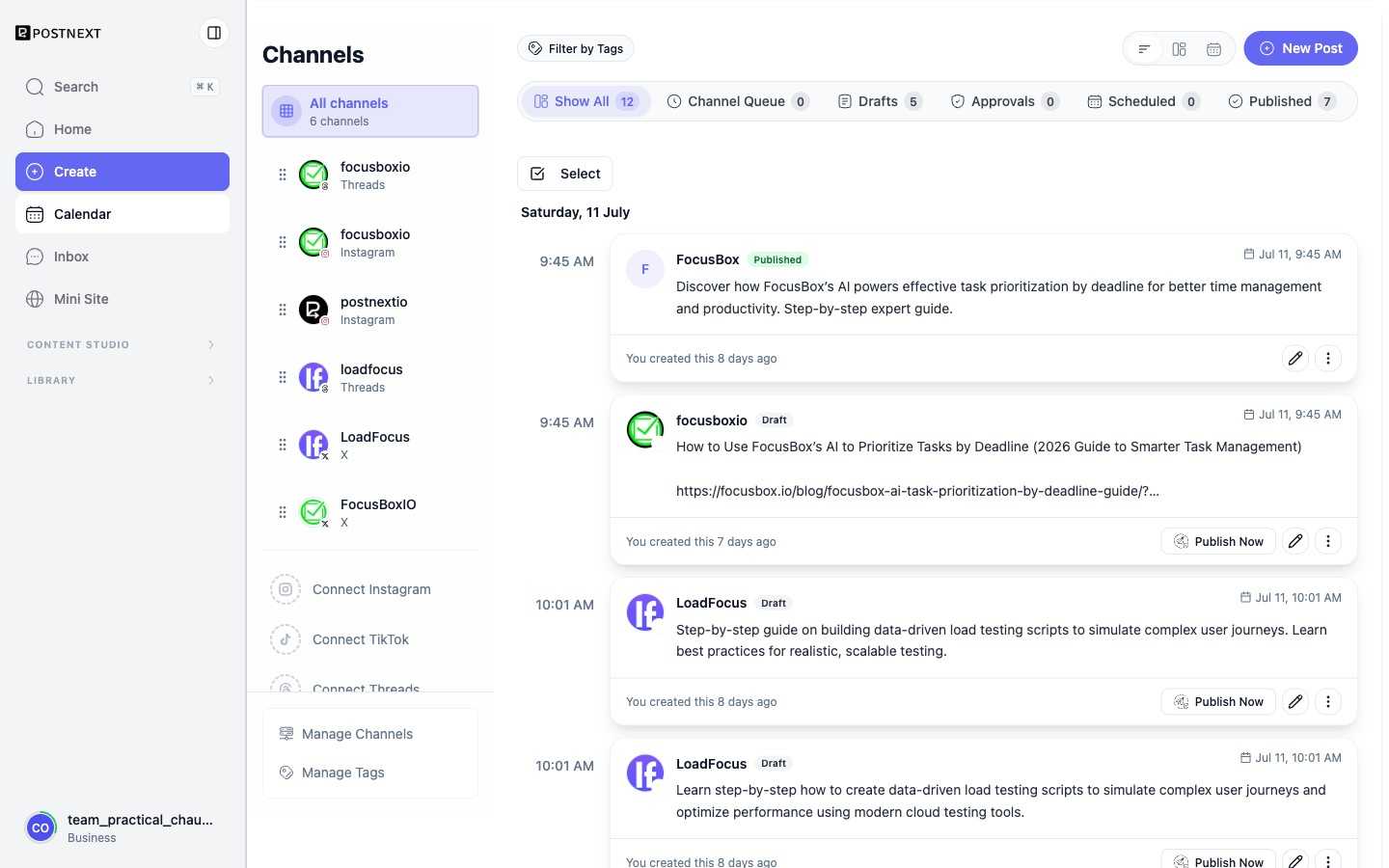
Schedule a draft
Pick the date and time you want the post to go out. The draft enters your queue and PostNext publishes it automatically at the scheduled time.
The queue and calendar
All scheduled posts appear in your queue and calendar view. Before a post publishes, you can reschedule it to a different time or cancel it entirely.
Best time to post
On paid plans, PostNext can suggest the best time to post for each channel based on engagement data. Suggestions are weighted per channel so a recommendation for LinkedIn may differ from one for X. See Best time to post for details.
Publishing and status
PostNext publishes your post at the scheduled time. You can check publish status in your queue or post detail view. If a post fails to publish, PostNext surfaces the error so you can review and retry.
Track results
After a post publishes, view its performance metrics from the post detail. See Analytics for what is tracked and how to interpret results.