Asset Management
Asset Management
The media library stores the images and video you upload to PostNext. Assets you upload once can be reused across multiple posts without uploading the same file again.
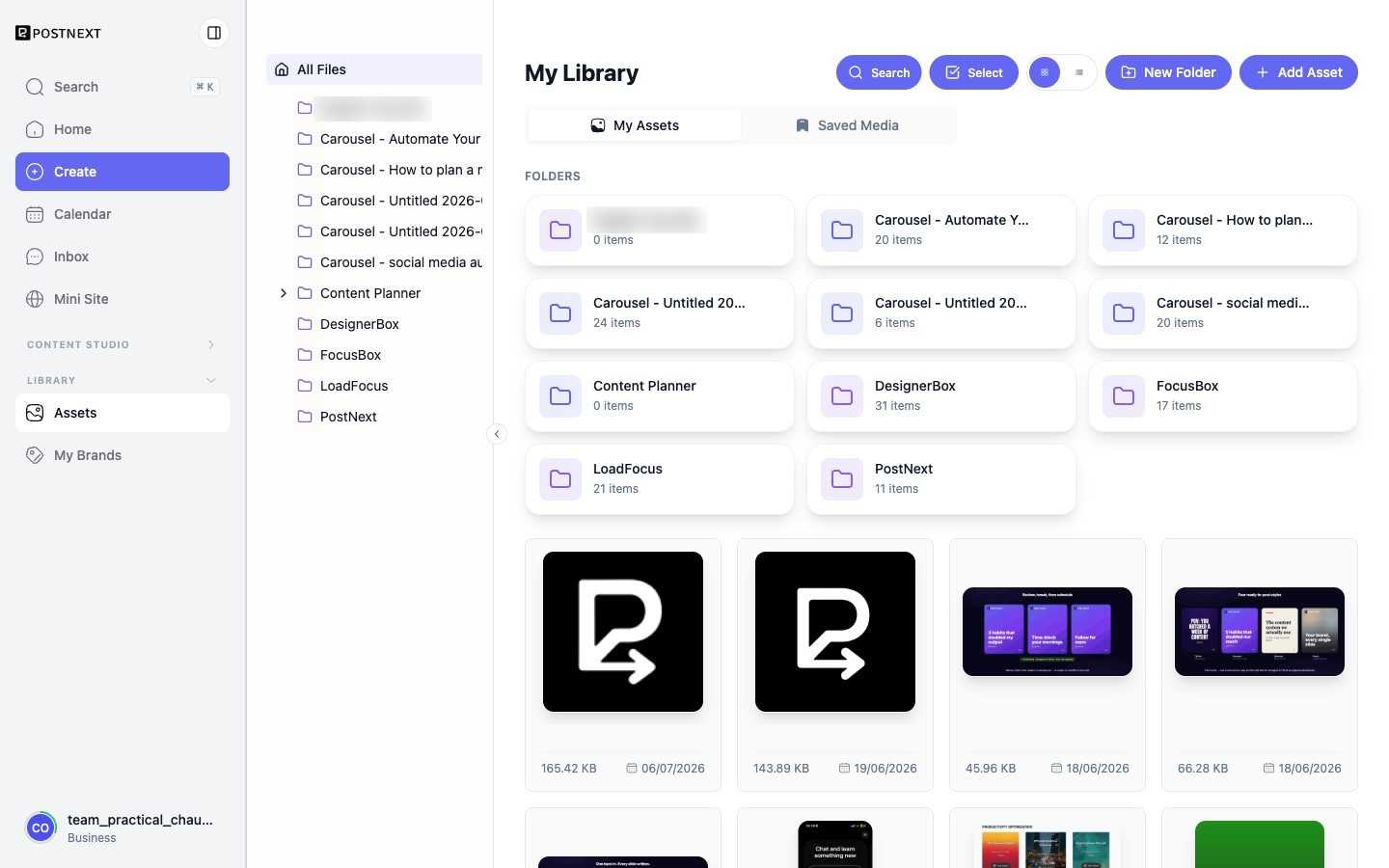
Open My Library from the sidebar to manage your media. Files are split between a My Assets tab for what you have uploaded and a Saved Media tab, and you can organize uploads into folders. Each thumbnail shows the file size and the date it was added.
Uploading assets
Use Add Asset to upload images and video, or New Folder to organize them. Supported file types and size limits depend on your plan.
Reusing assets
Once an asset is in your library, you can attach it to any draft from the composer. See Post Composer for how to attach assets when creating a post.
Storage allowance
The amount of storage available to you scales by plan. If you reach your storage limit, you will need to delete existing assets or upgrade your plan before uploading more files. See Managing Your Plan and Limits for the storage allowance on each plan.