
Codex MCP lets OpenAI’s Codex use tools from other apps through the Model Context Protocol. You add a server once with codex mcp add or a [mcp_servers.<name>] table in ~/.codex/config.toml, and the Codex CLI, the IDE extension and the ChatGPT desktop app all read that setup (OpenAI docs, checked 26 November 2026). PostNext’s server is the worked example below.
Key Takeaways
- One config for three apps. The Codex CLI, the IDE extension and the ChatGPT desktop app share
~/.codex/config.toml, so you set a server up once. - Two kinds of server. STDIO servers run on your computer from a command. Streamable HTTP servers run at an address, such as
https://mcp.postnext.io/api. - Sign-in is a separate step. Run
codex mcp login <name>for OAuth, or pointbearer_token_env_varat a token in your environment. - You choose what runs without asking.
default_tools_approval_modetakes four values.writesasks before any tool that is not marked read-only. - You can hide tools.
enabled_toolsanddisabled_toolslimit what Codex sees from one server. - ChatGPT on the web is different. It does not read your Codex config. It uses servers added as plugins.
What is Codex MCP?
Codex MCP is how Codex, OpenAI’s coding agent, connects to MCP servers. An MCP server is a program that tells an AI app which tools it offers and runs them when asked: look up a ticket, read a design file or save a social media draft. With a server added, Codex can use those tools in the same task where it reads your code.
OpenAI’s documentation says MCP “lets ChatGPT and Codex use tools and information from other systems”. Codex supports both kinds of MCP server, with these options for each (OpenAI, Model Context Protocol docs, 26 November 2026):
| STDIO server | Streamable HTTP server | |
|---|---|---|
| Where it runs | On your computer, started by a command | On the internet, at a URL |
| Required setting | command | url |
| Sign-in | Environment variables | OAuth, a bearer token or static headers |
| Add it from the CLI | codex mcp add <name> -- <command> | codex mcp add <name> --url <address> |
| Example | npx -y @upstash/context7-mcp | https://mcp.postnext.io/api |
Source: OpenAI, Codex MCP documentation, checked 26 November 2026.
PostNext has a free lesson on what an MCP server is if the term is new to you.
Where does Codex store MCP servers?
Codex stores MCP servers in config.toml. The default file is ~/.codex/config.toml, which applies to every project. A project can have its own .codex/config.toml, but Codex reads it only in trusted projects. Each server is one [mcp_servers.<name>] table. The Codex CLI, the IDE extension and the ChatGPT desktop app all read the same file (OpenAI, November 2026).
The shared file has a practical effect. Add a server in the terminal and it appears in the IDE extension too, without a second setup. The other direction also works: a server added in the desktop app’s settings is written to the same configuration.
Use the project file for a server only one repo needs, such as a database for that app. Use the global file for tools you want everywhere, such as documentation search or your social media scheduler. Keep secrets out of a project file that goes into version control; OpenAI’s docs warn the same about the OAuth client secret Codex can save there.
How do you add an MCP server to Codex?
The quickest way is one command in your terminal: codex mcp add <name> --url <address> for a server at a URL, or codex mcp add <name> -- <command> for one that runs locally. You can also add a [mcp_servers.<name>] table to config.toml by hand, or use Add server in the IDE extension or the ChatGPT desktop app.
Four ways to add PostNext, all ending in the same config entry:
1. The Codex CLI. Run:
codex mcp add postnext --url https://mcp.postnext.io/api
codex mcp login postnext
The second command opens the PostNext sign-in in your browser.
2. config.toml by hand. Open ~/.codex/config.toml and paste:
[mcp_servers.postnext]
url = "https://mcp.postnext.io/api"
Then run codex mcp login postnext. PostNext’s own guide notes that an older Codex that only reads STDIO servers also needs experimental_use_rmcp_client = true under [features], or an upgrade.
3. The IDE extension. Open the gear menu, then MCP servers, then Add server. Enter a name, choose Streamable HTTP, paste the URL and save. Select Restart extension, then Authenticate.
4. The ChatGPT desktop app. Open Settings, then MCP servers, then Add server. The steps match the IDE: name, Streamable HTTP, URL, save, Restart, then Authenticate.
To check it worked, run codex mcp list in the terminal, or type /mcp inside Codex to see the active servers. If you are not sure of the config for a client, npx postnext-mcp codex prints the PostNext entry for Codex. It only prints text; the server is hosted, so there is nothing to install.

How do you sign in to an MCP server in Codex?
For a server that uses OAuth, run codex mcp login <name>. Codex opens the sign-in page in your browser and stores the token. On a machine with no browser, add --no-browser, open the printed link elsewhere and paste the full redirect URL back into the terminal. For a token instead of OAuth, set bearer_token_env_var to the name of an environment variable.
When to use which (OpenAI Codex docs, 26 November 2026):
| Situation | Sign-in method | Setting or command |
|---|---|---|
| You work in Codex yourself | OAuth | codex mcp login <name> |
| Remote machine, no browser | OAuth, pasted redirect | codex mcp login <name> --no-browser |
| Script, CI job or shared machine | Bearer token | bearer_token_env_var = "MY_TOKEN" |
| Server wants a custom header | Static or env header | http_headers or env_http_headers |
With PostNext, OAuth is the normal route, and the token lasts 30 days. For a script, create an API key on your PostNext account page and set it in an environment variable:
[mcp_servers.postnext]
url = "https://mcp.postnext.io/api"
bearer_token_env_var = "POSTNEXT_API_KEY"
The variable holds the key itself, which starts with apikey_. Codex sends it in the Authorization header on every request. If no sign-in method works, Codex can still connect without one, so a server that needs sign-in shows no tools until you log in.
How do you control which tools Codex can run?
Set default_tools_approval_mode on the server. OpenAI’s docs list four values: auto, prompt, writes and approve. prompt asks before every tool. writes asks only before tools that are not marked read-only. To go further, enabled_tools keeps only the tools you name and disabled_tools removes tools, applied after the allow list.
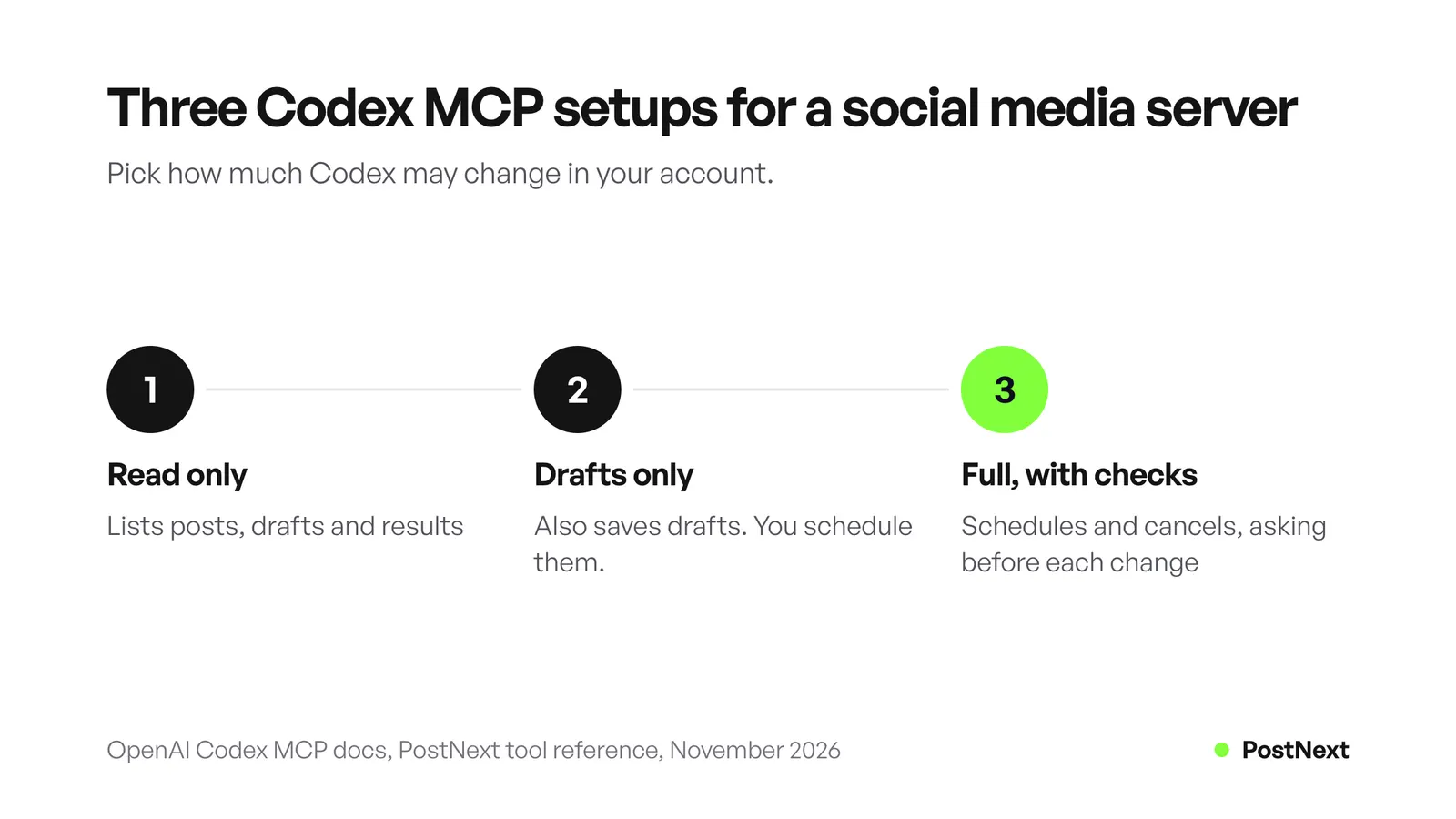
This is the part most setup guides skip, and it decides how much you trust a server. The writes mode depends on the server labelling its tools. PostNext marks every tool that only reads with readOnlyHint: true (PostNext tool reference, November 2026), so writes lets Codex list your queue freely and stops it before it saves, schedules or deletes anything.
Three setups for a social media server, from the most careful to the most open:
| Setup | What Codex can do | Config lines |
|---|---|---|
| Read only | List scheduled posts and drafts, read results | enabled_tools = ["list_scheduled_posts", "list_drafts", "get_post_metrics", "get_channel_analytics"] |
| Drafts only | Everything above, plus save drafts you post yourself | disabled_tools = ["schedule_post", "cancel_scheduled_post", "delete_draft"] and default_tools_approval_mode = "writes" |
| Full, with checks | Draft, schedule and cancel, asking before each change | default_tools_approval_mode = "writes" |
You can also set one tool apart. Under [mcp_servers.postnext.tools.schedule_post], approval_mode = "prompt" makes Codex ask before every scheduled post even when the rest of the server runs freely. Two other options help on slow servers: startup_timeout_sec (default 10 seconds) and tool_timeout_sec (default 60 seconds).
Why is my MCP server not showing in Codex?
The most common cause is a server that is added but not signed in. Codex can connect without sign-in, and the server then offers no tools. Run codex mcp login <name>, then check /mcp inside Codex. Other causes are a project config in an untrusted project, a server that takes longer than 10 seconds to start, and looking for the server in ChatGPT on the web.
Checks in order, from OpenAI’s docs (26 November 2026):
- Is it in the list? Run
codex mcp list. If the server is missing, the config file has a typo in the table name or sits in the wrong folder. - Is the project trusted? A server in
.codex/config.tomlloads only in trusted projects. Move it to~/.codex/config.tomlto test. - Is it signed in? Run
codex mcp login <name>. The IDE extension and the desktop app show Authenticate next to a server that needs it. - Did you restart? The IDE extension needs Restart extension and the desktop app needs Restart after you save a server.
- Is it slow to start? Raise
startup_timeout_secabove the default 10 seconds for a STDIO server that loads a lot first. - Is it turned off?
enabled = falsehides a server without deleting it.
ChatGPT on the web is a separate case. OpenAI says it “doesn’t read local Codex configuration files”. To use the same server in a ChatGPT chat, add it as a plugin from the Plugins page; our guide to ChatGPT for social media walks through that.
Can Codex post to social media?
Yes, through a scheduler’s MCP server. Codex does not post to social networks by itself. With PostNext added, Codex can save drafts, schedule them and read their results on X, Instagram, LinkedIn, TikTok and Threads. PostNext publishes each post at the set time through the network’s official API, after you close Codex. MCP access is included in every PostNext plan, Free included.
Codex sits next to the work a release post is about: the commits, the pull requests and the README. That makes it a good place to write the post. Prompts that fit:
- “Summarise the commits since the last tag into a release post for X and LinkedIn. Save both as drafts.”
- “Turn README.md into three short posts that each explain one feature. Show me the plan first.”
- “List what is scheduled for the next 7 days and flag any day with nothing on it.”
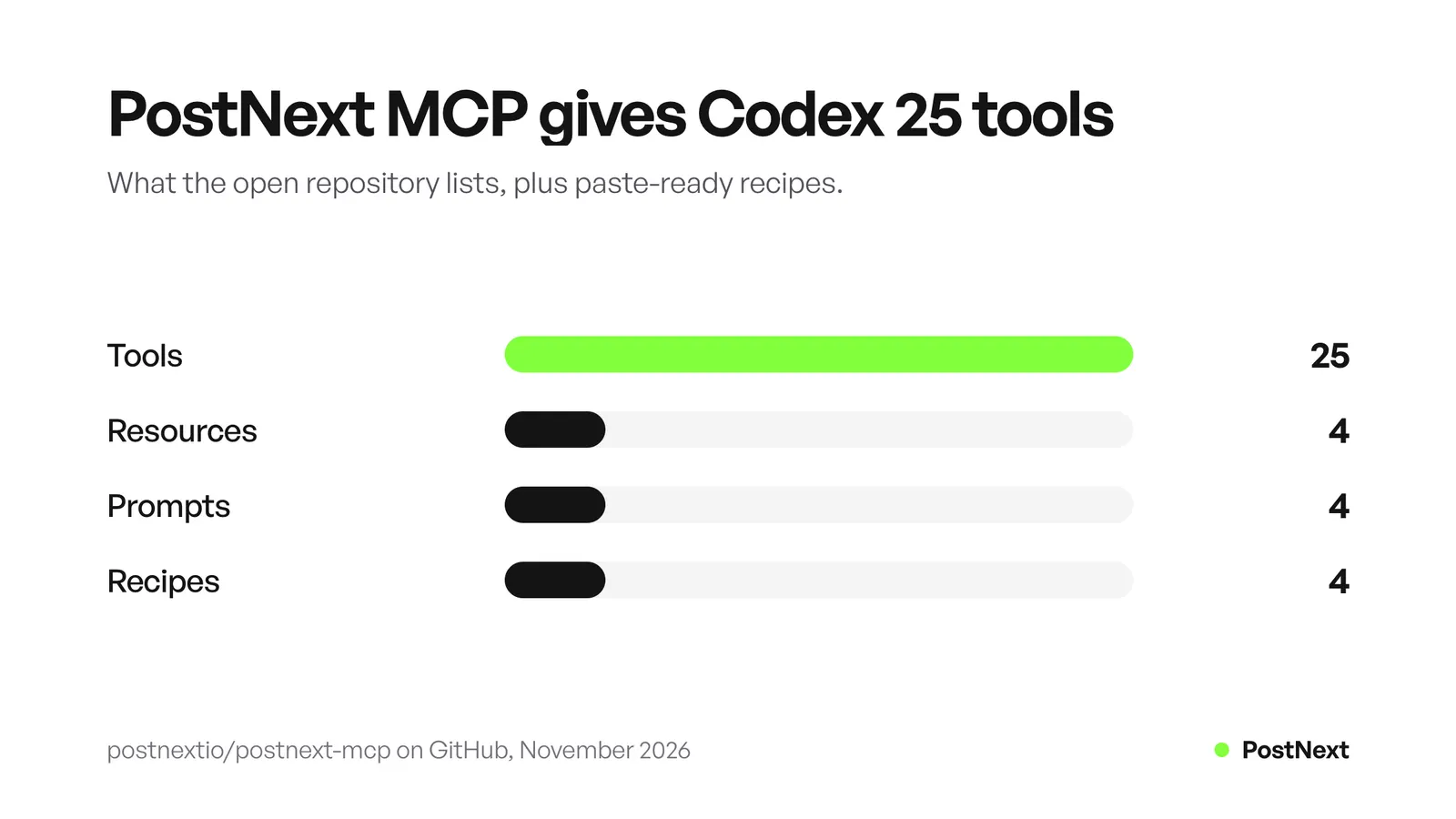
PostNext publishes its MCP server’s documentation in an open repository, postnextio/postnext-mcp on GitHub, under the MIT license. It lists all 25 tools, 4 resources and 4 ready-made prompts, and the recipes folder holds paste-ready workflows: a weekly content plan, a thread from an article, a queue audit and a channel check. The server is also listed in the official MCP registry as io.postnext/postnext (version 1.5.2 on 26 November 2026). Our tour of the postnext-mcp repository covers what each folder holds.
What the free plan covers over MCP: 1 channel, 10 scheduled posts and 10 AI credits a month, and each saved draft uses 1 credit. Four tools need a paid plan: editing a draft, best-time suggestions, account health and editing the brand profile. The full setup with screenshots is on PostNext’s guide to scheduling social media posts with Codex, and the MCP tool reference lists every tool’s inputs. For the same workflow in Anthropic’s terminal agent, see Claude Code for marketing.
Frequently Asked Questions
How do I add an MCP server to Codex?
Run codex mcp add <name> --url <address> for a server at a URL, or codex mcp add <name> -- <command> for a local one. You can also add a [mcp_servers.<name>] table to ~/.codex/config.toml, or use Add server in the IDE extension or the ChatGPT desktop app. Then sign in with codex mcp login <name> if the server uses OAuth.
Where is the Codex MCP config file?
In ~/.codex/config.toml for every project, or .codex/config.toml inside one project. Codex reads the project file only in trusted projects. The CLI, the IDE extension and the ChatGPT desktop app share it.
Does Codex support remote MCP servers?
Yes. Codex supports Streamable HTTP servers at a URL, with OAuth, bearer tokens or custom headers for sign-in. It also supports STDIO servers that run on your computer from a command.
Which ChatGPT plans include Codex?
OpenAI’s Codex pricing page lists Codex as included in the ChatGPT Free, Go, Plus, Pro, Business, Edu and Enterprise plans (checked 26 November 2026). Usage allowances differ by plan, and some plans can add credits.
Can Codex use MCP servers without asking me?
You decide per server with the approval mode. prompt asks before every tool, and writes asks before any tool that is not marked read-only. You can also set a mode for one tool, such as asking before every scheduled post.
Does the same MCP server work in Codex and ChatGPT?
Yes, but you add it twice. Codex reads config.toml. ChatGPT on the web uses servers added as plugins and does not read the Codex config. PostNext uses one address, https://mcp.postnext.io/api, for both.
Sources
- OpenAI, Model Context Protocol in ChatGPT and Codex (checked 26 November 2026): config.toml locations, CLI commands, OAuth and bearer tokens, approval modes, tool lists, timeouts, ChatGPT web limits.
- OpenAI, Codex pricing (checked 26 November 2026): plans that include Codex.
- PostNext, postnext-mcp repository on GitHub (26 November 2026): Codex config, 25 tools, resources, prompts, recipes, free plan limits, API key format, MIT license.
- PostNext, Schedule social media posts with Codex and the MCP tool reference, postnext.io/mcp/docs (November 2026): setup steps, read-only tool annotations.
- MCP Registry, registry.modelcontextprotocol.io, entry
io.postnext/postnext(26 November 2026): version 1.5.2.