
ChatGPT for social media covers two jobs. The first is writing: captions, threads, hooks and a week’s plan from one article, which works on every ChatGPT plan. The second is posting: with a scheduler added as a custom MCP server, ChatGPT saves drafts and schedules posts in your calendar. In November 2026 OpenAI gives full MCP access, with write tools, to Business, Enterprise and Edu.
Key Takeaways
- Writing works on any plan. ChatGPT drafts posts, rewrites them for each network and plans a week of topics without any connection.
- Posting needs a connected tool. ChatGPT does not post to Instagram, X or LinkedIn by itself. A scheduler connected over MCP does the publishing.
- Full MCP is on Business, Enterprise and Edu. OpenAI’s help center says Pro users can connect custom MCP servers with read and fetch permissions only.
- No developer mode. ChatGPT now adds custom servers from Plugins, with the plus button and Add custom MCP server.
- Web only. OpenAI says custom MCP servers cannot be connected on mobile.
- ChatGPT asks before writes. It asks you to confirm write actions based on the app’s permissions and the action.
How can you use ChatGPT for social media?
You can use ChatGPT for social media to write posts, adapt one idea to each network, plan a week of topics, write hooks and summarize what worked. Give it your topic, your audience, the network and the length, and it returns a draft in seconds. Connected to a scheduler, it can also save those drafts in your calendar and schedule them.
The jobs, split by what each one needs:
| Job | Works with plain ChatGPT | Needs a connected scheduler |
|---|---|---|
| Write a caption or a thread | Yes | No |
| Rewrite one post for X, LinkedIn and Threads | Yes | No |
| Plan a week of topics from an article | Yes | No |
| Check what is already scheduled before planning | No | Yes |
| Save posts as drafts in your calendar | No | Yes |
| Schedule a post for Tuesday at 9:00 | No | Yes |
| Read last week’s results | Only if you paste them | Yes |
The left column is where most people start. The right column is where ChatGPT stops being a copy-and-paste step. Our AI content creation workflow shows the writing side in four steps.
What are good ChatGPT prompts for social media posts?
Good prompts name four things: the source, the network, the length and the output you want. “Write a post about our launch” gives a generic draft. “Write a LinkedIn post under 1,300 characters from this changelog, for small agency owners, ending with one question” gives a usable one. Ask for two or three versions and pick, instead of asking for one perfect post.
Prompts that work, with the part each one fixes:
- “Write a launch post for X, LinkedIn and Threads about our new pricing page. Keep each one under 200 characters.” Names the networks and a length, so ChatGPT does not write one long post three times.
- “Plan five posts for next week from this article. Show me the plan first, then write them.” Gets a list you can cut before any text is written.
- “Here are my last 10 posts and their likes. Which topics did best, and what should I post next week?” Gives it real numbers instead of asking it to guess.
- “Rewrite this caption in plain English for readers who speak English as a second language.” Fixes tone without adding filler.
ChatGPT can state wrong facts in a confident voice. Check every number, date and product claim before a post goes out. For hooks that open a post, our list of hook ideas gives tested shapes to start from.
Can ChatGPT post to social media?
Yes, through a connected tool. ChatGPT itself has no posting button for Instagram, X or LinkedIn. With a scheduler added as a custom MCP server, ChatGPT can draft posts, schedule them for a time you choose and read their results. The scheduler publishes each post through the network’s official API, so the post goes out after you close the chat.
PostNext is one such scheduler. Its MCP server is at https://mcp.postnext.io/api and posts to X, Instagram, LinkedIn, TikTok and Threads (November 2026). PostNext also has a ChatGPT tool that saves images and videos you attach in the chat to your PostNext asset library, so ChatGPT can add them to a post. The setup is on PostNext’s guide to social media scheduling from ChatGPT.
Which ChatGPT plans can connect a custom MCP server?
OpenAI’s help center says custom MCP server connections and full MCP support are available to ChatGPT Business and Enterprise/Edu customers on ChatGPT web (November 2026). Pro users can connect custom MCP servers with read and fetch permissions, which lets ChatGPT read your queue but not create or schedule posts. On Business plans, only admins and owners can create and publish the plugin.
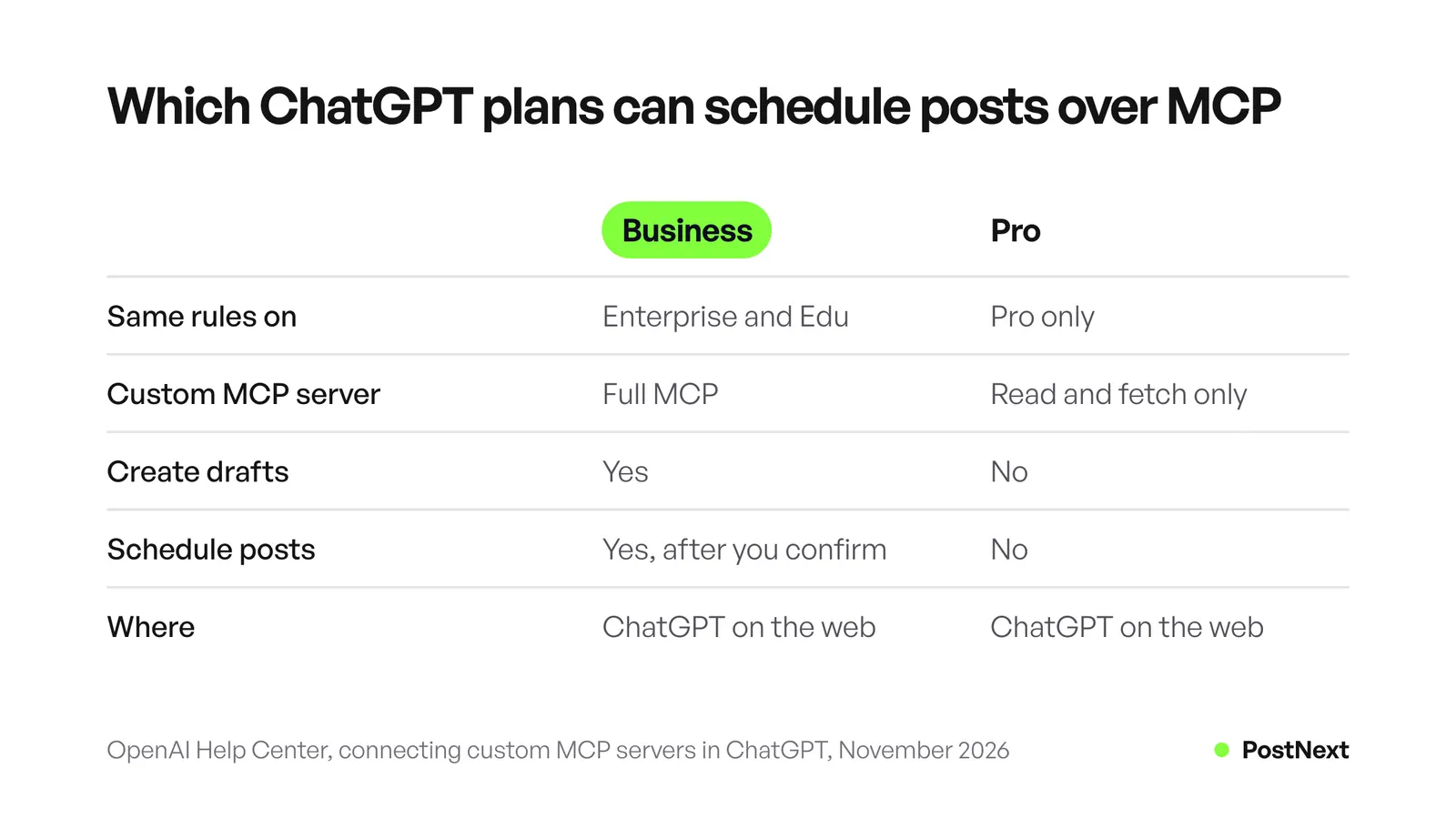
| ChatGPT plan | Custom MCP server | Can schedule posts | Who sets it up |
|---|---|---|---|
| Business | Yes, full MCP | Yes, with confirmation | Admins and owners |
| Enterprise and Edu | Yes, full MCP | Yes, with confirmation | Admins, owners and members given permission |
| Pro | Read and fetch only | No | You |
Source: OpenAI Help Center, “Connecting custom MCP servers in ChatGPT”, read November 2026. OpenAI’s article does not cover other plans; check your Plugins page before you start.
How do you add an MCP server to ChatGPT?
In ChatGPT on the web, open Plugins, select the plus button and choose Add custom MCP server. Enter a name, paste the server’s public HTTPS address under Connection, set up the sign-in, tick “I understand and want to continue” and select Create as a plugin. Then install the plugin, start a new chat, type @ and pick it.
Step by step with PostNext, following OpenAI’s article and PostNext’s guide (November 2026):
- Open Plugins. On chatgpt.com, go to Plugins and select the plus button, then Add custom MCP server.
- Paste the URL. Name it PostNext, paste
https://mcp.postnext.io/apiunder Connection and choose OAuth. - Accept the warning. Tick “I understand and want to continue”. OpenAI shows this for every custom server.
- Create and install. Select Create as a plugin, review the tools ChatGPT found, install it and sign in to PostNext when asked.
- Use it in a chat. Type @ in a new chat and pick PostNext. ChatGPT asks you to confirm write actions before they run.
Guides that send you to developer mode or a Connectors page describe menus ChatGPT has replaced. OpenAI’s article says you do not need to turn on Developer Mode first.
Is it safe to let ChatGPT schedule your posts?
It is safe when you keep the checks on. OpenAI says ChatGPT asks for confirmation before write actions based on the app’s permissions and the action’s context, and may block high-risk actions. It also warns that untrusted MCP servers increase the risk of prompt injection. Connect only servers you trust and read drafts before you schedule them.
Three more points from OpenAI’s article change how you use it:
- Deep research cannot write. It can use custom apps for read and fetch actions only, so a research run will not schedule posts.
- Tool lists are frozen. After an admin approves a server, ChatGPT keeps a snapshot of its tools. New tools from the server appear only after an admin refreshes them.
- Your social passwords stay out of ChatGPT. You sign in to the scheduler with OAuth, and the scheduler holds the connection to each network.
PostNext adds its own layer. Every post it receives is a draft first, scheduling is a separate step, and you can cancel a scheduled post in the social media calendar until it goes out. The same checks apply to any assistant; our social media AI agent guide lists them.
What can ChatGPT not do for social media?
ChatGPT cannot see your audience, your past results or your brand rules unless you give them to it. It does not know what you posted last week, so it repeats topics. It cannot reply to comments or DMs on its own. And through PostNext it does not send direct messages, because PostNext schedules and publishes posts only.
The gaps have fixes. A connected scheduler gives ChatGPT your queue, so it can avoid repeats and find empty days. A brand profile in PostNext gives it your voice. For Instagram DMs, a tool built for the inbox does that job: CreatorFlow sends your link by DM to people who comment a keyword, set up in its own app rather than in ChatGPT. If ChatGPT drafts carousels for you, our Instagram carousel ideas give it slide outlines to work from.
Frequently Asked Questions
Can ChatGPT schedule Instagram posts?
Not by itself. With a scheduler such as PostNext added as a custom MCP server on a Business, Enterprise or Edu plan, ChatGPT can save an Instagram post as a draft and schedule it. PostNext then publishes it through Instagram’s official API at the time you set.
Do I need developer mode to connect an MCP server to ChatGPT?
No. In November 2026 ChatGPT adds custom MCP servers from Plugins, with the plus button and Add custom MCP server. OpenAI’s help article says you do not need to turn on Developer Mode first.
Can I connect an MCP server in the ChatGPT mobile app?
No. OpenAI’s help center says custom MCP server connections are web only. Once a plugin is set up on the web, check your workspace settings for how it appears elsewhere.
Is ChatGPT good at writing social media posts?
It is good at first drafts, rewrites for each network and turning one article into several posts. It is weak on facts it cannot check and on knowing what your audience liked before. Give it your results and your brand rules, and read every post before it goes out.
What is the difference between ChatGPT and Codex for social media?
ChatGPT is OpenAI’s chat assistant. Codex is OpenAI’s coding agent for the terminal, the IDE and the desktop app. Both can connect to the same PostNext MCP server; Codex suits teams that write posts from files in a repository.
Does PostNext charge extra for ChatGPT access?
No. MCP access is included in every PostNext plan. The free plan creates drafts with 10 AI credits a month and schedules up to 10 posts a month on one channel.
Sources
- OpenAI Help Center, Connecting custom MCP servers in ChatGPT (November 2026): plans, Pro read and fetch, setup steps, web only, confirmations, deep research, frozen tool snapshots, prompt injection.
- PostNext, Social media scheduling from ChatGPT (steps checked against OpenAI’s documentation on 18 November 2026): setup, prompts, attached files.
- PostNext, MCP tool reference, postnext.io/mcp/docs, and pricing, postnext.io/pricing (November 2026).