
Social media content management is how a team stores, plans, approves, publishes and reuses its posts and media in one place. A content management system for social media has six parts: a media library, a calendar, drafts and templates, an approval step, a searchable archive and post results. PostNext covers all six for seven networks, checked November 2026.
Key Takeaways
- Six parts, one place. Library, calendar, drafts and templates, approval, archive and results. A gap in any one sends people back to chat threads and shared drives.
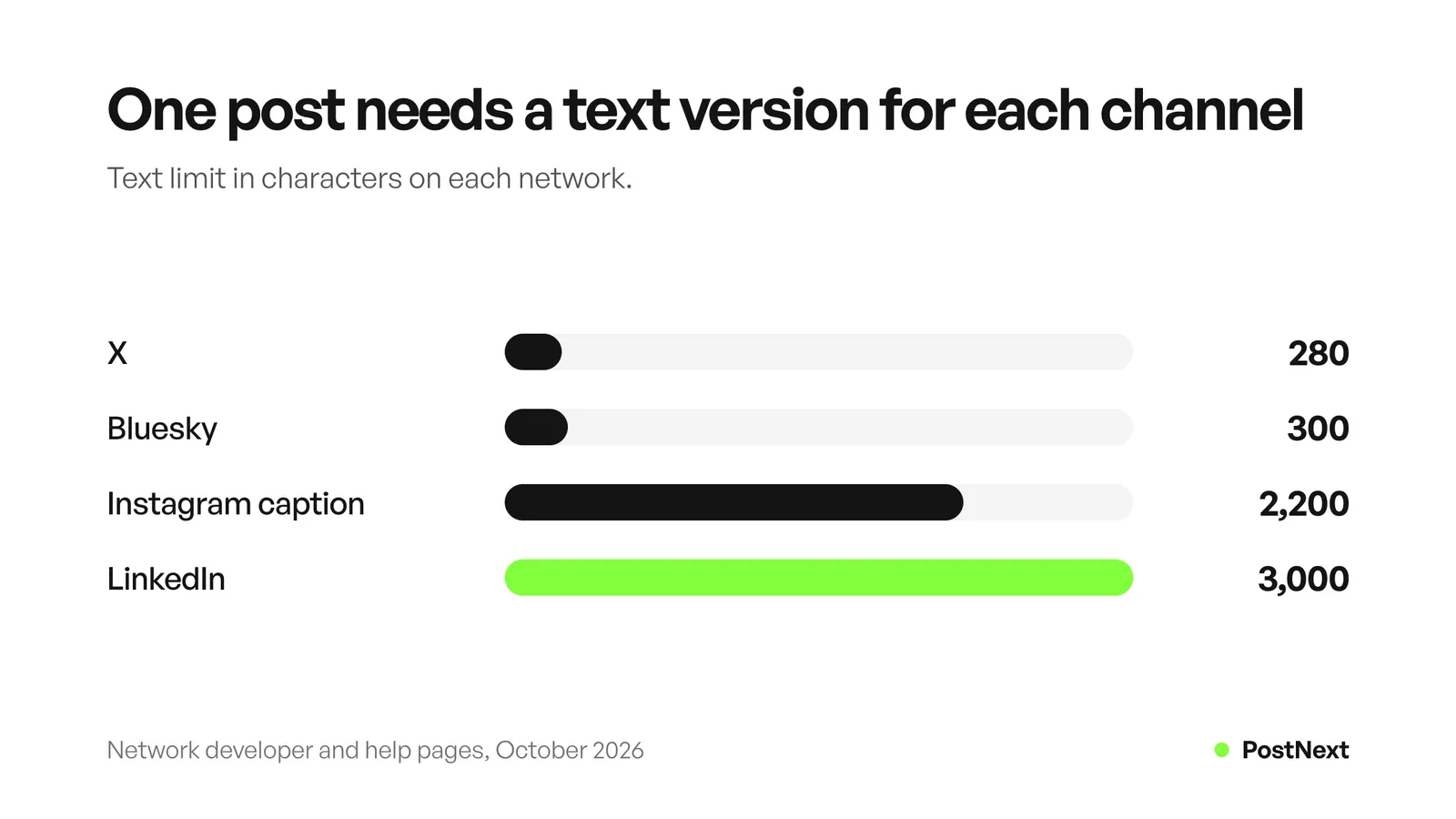
- A social CMS publishes to other companies’ networks. Each network has its own limits, such as 280 characters on X, 300 on Bluesky and 3,000 on LinkedIn, so one post needs a version per channel.
- Folders and file names do the sorting. Many tools, PostNext included, have no tags on media, so a fixed folder tree and a naming rule are what make files findable later.
- Five statuses cover the workflow. Draft, pending approval, scheduled, published and failed. Everyone on the team should see the same status for the same post.
- The archive is a source of new posts. A searchable record of published captions and files turns last year’s best post into next month’s draft.
- One weekly hour keeps it working. File new media, plan the week, clear approvals and read last week’s results.
What is social media content management?
Social media content management is the work of keeping every post and file a team uses in one system, from the first idea to the published post and its results. It covers where images and videos live, how posts move from draft to approved to scheduled, and how old posts are found and reused. The goal is that anyone on the team can answer “where is that file” and “what goes out on Friday” in under a minute.
Without a system, social content lives in five places: a phone camera roll, a shared drive, a spreadsheet calendar, a chat thread for approvals and each network’s own app. Each handover between those places is a chance to post the wrong file, miss a date or lose the caption that worked. A social media content management system, often called a social media CMS, puts those places into one tool.
The word “content” covers more than the post text:
- Media: photos, videos, GIFs, logos and product shots.
- Words: captions, hashtags, first comments and reusable caption templates.
- Plans: the calendar, campaigns and content pillars.
- Records: who approved what, what published when, and how it did.
How is a social media CMS different from a website CMS?
A website CMS, such as WordPress, stores pages and publishes them to a site you own, with one set of rules. A social media CMS stores posts and media and publishes them to networks you do not own, each through its own API with its own limits on length, file type and timing. It also needs an approval step, a calendar across channels and results read back from each network.
| Question | Website CMS | Social media CMS |
|---|---|---|
| Where does content publish? | Your own website | X, Instagram, LinkedIn, TikTok, YouTube, Threads, Bluesky and other networks |
| Who sets the rules? | You and your theme | Each network: text length, media types, aspect ratios, posting limits |
| How long does content stay current? | Pages stay up for months or years | Most posts are seen in the first days, then join the archive |
| What does one piece of content become? | One page | One post with a version per channel |
| What comes back after publishing? | Site analytics | Likes, comments, views and reach from each network |
| What needs approval? | Pages before they go live | Every post, often with a client or manager outside the team |
The differences decide what the tool must do. Because each network sets its own text limit (X 280 characters, Bluesky 300, LinkedIn 3,000, Instagram captions 2,200), a social CMS needs a separate text field per channel. Because posts age fast, it needs a calendar more than a page tree. Because results come from each network, it needs analytics that read them back. A blog CMS can share links to social media, but it does not hold the per-channel versions, the approvals or the results.
What are the six parts of a social media content management system?
A complete social media content management system has six parts: a media library for files, a calendar for dates, drafts and templates for words, an approval step for checks, a searchable archive for reuse and results for learning. Each part answers one question the team asks every week. If your tool lacks a part, write down where that job happens instead, so it does not live in someone’s head.
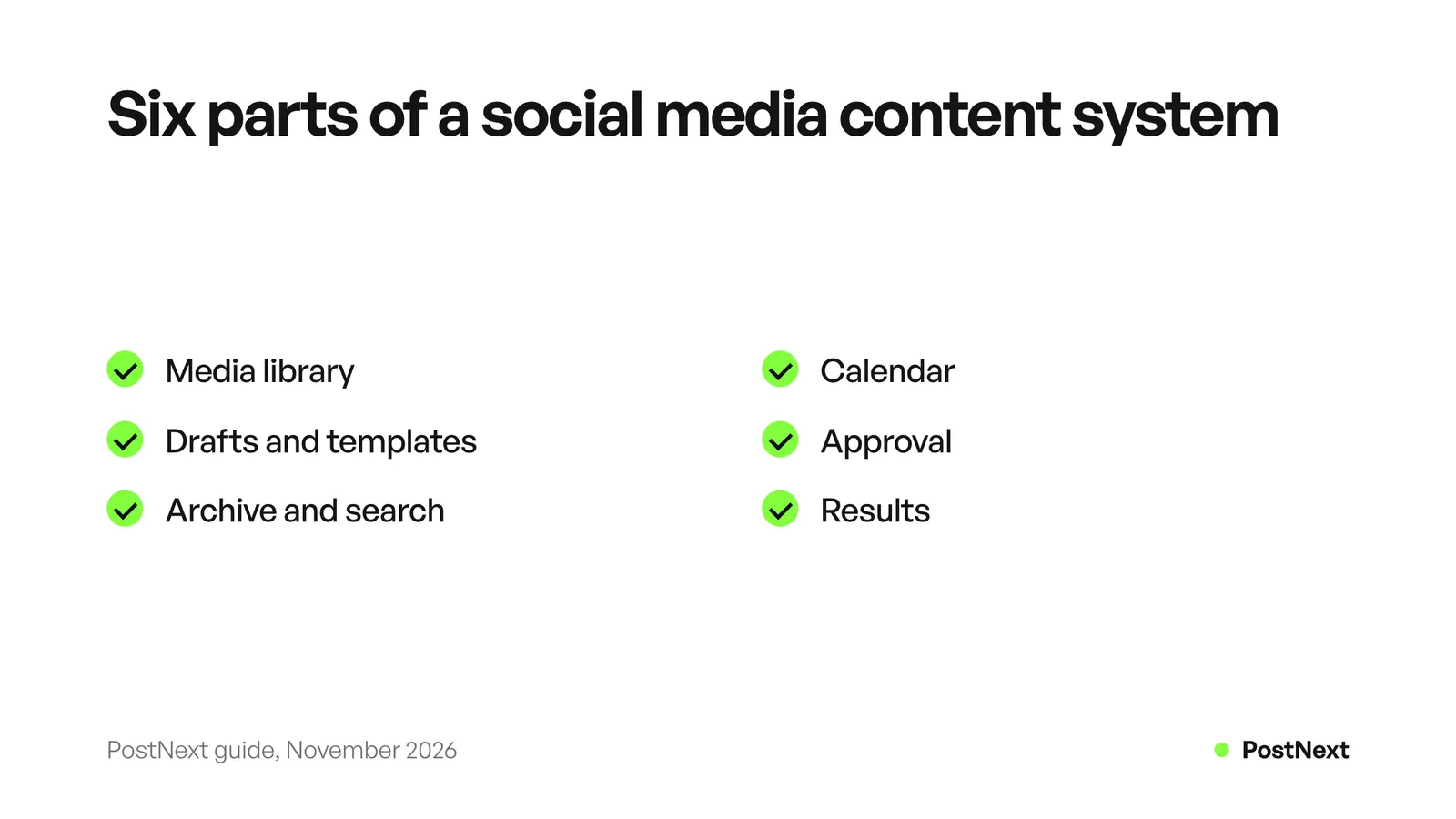
| Part | What it holds | The question it answers |
|---|---|---|
| Media library | Photos, videos, GIFs, logos, sorted in folders | ”Where is the approved product photo?” |
| Calendar | Every scheduled post across channels, by day | ”What goes out this week, and where are the gaps?” |
| Drafts and templates | Captions in progress and reusable caption formats | ”How do we write our launch posts?” |
| Approval | Posts waiting for a check, with comments | ”Who has to say yes before this publishes?” |
| Archive and search | Every published post, caption and file | ”What did we post about this last year?” |
| Results | Likes, comments, views and reach per post | ”Which posts should we make more of?” |
The order matters for small teams. Start with the library and the calendar, because those two remove most lost files and missed dates. Add templates and approval when a second person writes posts. The archive and results grow on their own once every post goes through the same tool.
How should you organize a social media content library?
Organize a social media content library with one folder tree and one file naming rule that everyone follows. Make top-level folders by brand or client, then by campaign or content pillar, then a folder for raw files and one for approved files. Name each file with the date, the topic and the format, so a search for one word finds it even without tags.
A folder tree that works for most small teams:
Brand name/
  Evergreen/
    Logos and brand marks/
    Team photos/
    Product photos/
  Campaigns/
    2026-12 Winter sale/
      Raw/
      Approved/
  Content pillars/
    How-to videos/
    Customer stories/
A naming rule that keeps search useful: YYYY-MM-DD_topic_format_channel, for example 2026-12-01_winter-sale_reel_instagram.mp4. The date sorts files in order, the topic makes them findable by word, and the format and channel stop a 9:16 video from going to a channel that wants a square image.
Three rules keep the library clean:
- One home per file. Each file lives in one folder. Copies in three folders become three versions, and one of them is always the old one.
- Approved files are separate. Only files in an Approved folder go into posts. Raw files stay in Raw until someone checks them.
- Delete on a schedule. Once a quarter, delete raw files from finished campaigns. Storage limits are real, and old raw files make search slower to read.
Product photos and short product videos are often the slowest files to get. DesignerBox makes them from one product photo, and the results go into the same Approved folder as the rest.
Which post statuses does a content workflow need?
A social media content workflow needs five post statuses: draft, pending approval, scheduled, published and failed. Each post has exactly one status at a time, and the whole team sees the same one. Five is enough for most teams. More statuses, such as “in design” or “ready for review”, tend to go stale because nobody moves the post forward.
| Status | What it means | Who acts next |
|---|---|---|
| Draft | Written or started, not checked | The author finishes it and sends it for approval |
| Pending approval | Waiting for a yes or a change request | The reviewer approves it or comments |
| Scheduled | Approved and set for a date and time | Nobody, unless plans change |
| Published | Live on the network | The team reads results after a few days |
| Failed | The network did not accept it | The author fixes the cause and tries again |
The failed status is the one most teams forget to plan for. A post fails when a channel is disconnected, a file is the wrong type or a network rejects the text. A good system tells you by email or in the app, keeps the post and its media, and lets you retry it without writing it again. Our content approval process guide covers the review step in detail, including roles and a checklist.
How do you reuse content you already have?
Reuse content by searching your archive for posts that did well, then making a new version for today’s date and channel. A good archive keeps the caption, the media and the results together, so you can see which posts earned comments and copy their structure. Reuse is not reposting the same thing: change the hook, the image or the channel, and keep the idea.
Four ways to turn old content into new posts:
- Same idea, new channel. A LinkedIn post that earned comments becomes a short thread on X or Threads.
- Same caption, new media. A caption that worked with a photo gets a short video.
- Same topic, new year. Last December’s holiday hours post becomes this December’s, with new dates.
- Long piece, many posts. One blog article or changelog becomes five or more short posts for different days.
Templates make the last step faster. Save the captions you write every month (a launch, a sale, an event reminder) as templates with brackets for the parts that change, such as [PRODUCT] or [DATE]. A new teammate then starts from an approved format instead of a blank box. Our guide to brand social media guidelines shows how to write the voice rules those templates follow.
How do you choose a social media content management tool?
Choose a social media content management tool by checking that it covers all six parts for the networks you use, then test it with one real week of posts. Check the media library’s file types and storage, how approval works for people outside the team, whether search covers old captions, and what the tool cannot do. A missing part is fine when you know where that job happens instead.
Questions to ask on any tool’s own pages before you sign up:
- Networks. Does it publish to every network you use, and as the account type you need (a personal profile or a company page)?
- Library. Which file types does it accept, how much storage comes with your plan, and does it have folders, tags or both?
- Approval. Can a reviewer approve or ask for changes, and do they need their own login?
- Search. Does search cover published captions and file names, or only scheduled posts?
- History. Does it keep earlier versions of a draft, or does an edit replace it?
- Results. Which numbers does it read back from each network, and for how long?
- Access by code. Is there an API for uploading media and creating posts from your own scripts?
Run the test with one person who writes and one who approves. A week of real posts shows where files go missing and where approvals stall faster than any feature list. If you run social media for clients, our comparison of social media management tools for agencies covers workspaces, approval links and reports across 17 tools.
A weekly content management routine
A weekly content management routine takes about an hour and has four steps: file the new media, plan the week on the calendar, clear the approval queue and read last week’s results. Do it on the same day each week. The routine keeps the library clean and the calendar full, so daily work is writing and replying, not searching for files.
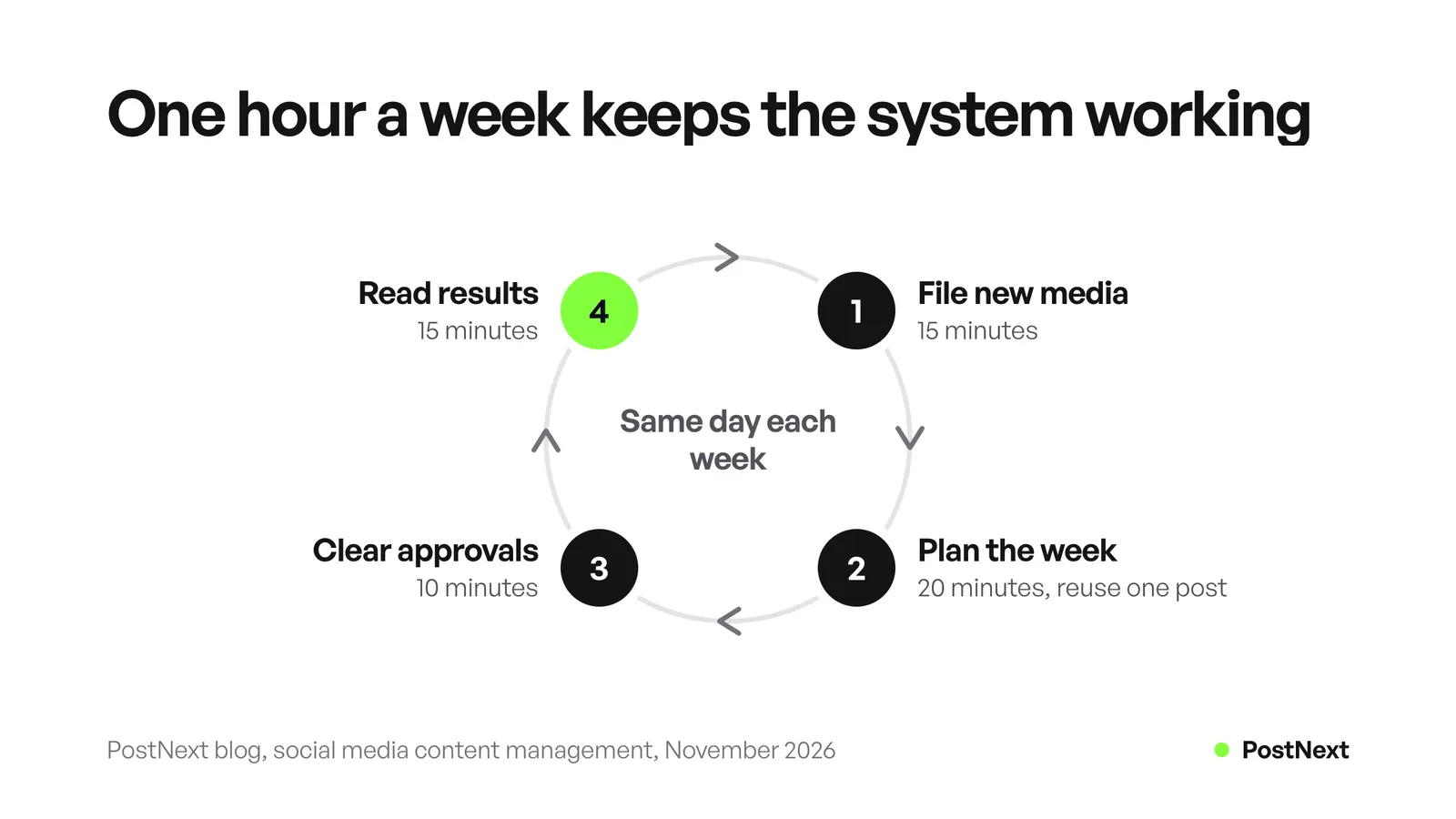
- File new media (15 minutes). Move this week’s photos and videos into the right folder, rename them with the naming rule and delete the duplicates.
- Plan the week (20 minutes). Open the calendar, fill the empty days from your content pillars and reuse one post from the archive.
- Clear approvals (10 minutes). Approve or comment on every post waiting for you, so nothing sits pending into the weekend.
- Read results (15 minutes). Note the two posts that earned the most comments or saves, and add one idea like each of them to next week.
The times are a guide, not a measurement. A team posting to seven channels every day needs longer, and a solo owner posting three times a week needs less. To take the publishing part off your hands as well, our guide to automating social media posting shows what can run by itself.
How does PostNext handle social media content management?
PostNext keeps the six parts in one workspace for X, Instagram, LinkedIn, TikTok, YouTube, Threads and Bluesky. It has a cloud media library with nested folders, a calendar, a post composer with templates, an approval step, search across posts and files, and post analytics. It has no tags on media and no version history for drafts, so folders, file names and approvals carry that load.
What each part does in PostNext, read off its feature pages in November 2026:
- Media library. The cloud asset library takes PNG, JPG and WebP images, MP4 videos and GIFs in nested folders. Storage is 10 MB on Free, 10 GB on Premium, 50 GB on Business and 10 GB per user on Teams. Free stock photos from Unsplash, Pexels and Pixabay and AI images go into the same library.
- Search. Content search opens with Cmd+K and checks post titles and captions, ideas, file names, descriptions, the prompts behind AI images and your AI chats. Accents count, so “cafe” does not find “café”.
- Templates. Post templates store caption text with a title and a note on when to use it. Each one is private or shared with the team, on every plan.
- Approval. On the Teams plan, a teammate approves a waiting post or asks for changes with a comment. Approved posts go back to drafts, ready to schedule. Team collaboration lists the roles.
- Statuses. The Publish screen shows queue, drafts, approvals, scheduled, published and failed tabs, as a list, a grid or a calendar.
- Access by code. The public REST API uploads media from a file, a URL or an upload link, and creates and schedules posts.
What it does not do today: tags on assets, saved searches, version history for drafts, template usage counts, and import from Dropbox or Google Drive. Agencies that need strict separation between clients use one team per client, because members of a team see all of its content.
Frequently Asked Questions
What is a social media CMS?
A social media CMS is a tool that holds your social posts and media in one place and publishes them to the networks. It combines a media library, a calendar, drafts, an approval step, an archive and results. Most social media schedulers include some or all of these parts.
Is a social media scheduler the same as a social media CMS?
A basic scheduler only sets posts to publish at a time. A social media CMS also stores the media, keeps the drafts and templates, handles approval and keeps a searchable archive. Many schedulers today include these parts, so check which ones a tool has instead of the name it uses.
Can I use WordPress as a social media content management system?
Not on its own. WordPress manages pages on your website. It can share a link to social media when a page publishes, but it does not hold per-channel versions, approvals, a social calendar or results from each network. Teams with a blog usually run both.
How should I name files in a social media content library?
Use one rule for every file: the date, the topic, the format and the channel, for example 2026-12-01_winter-sale_reel_instagram.mp4. The date keeps files in order, and the topic word makes them findable even in a tool without tags.
Do small businesses need a social media content management system?
A business posting a few times a week can start with two parts: one folder for approved media and one calendar. Add templates and approval when a second person writes posts. The system grows with the team.
How long should I keep old social media content?
Keep every published post and its approved media while your account is active, because the archive is where reuse starts. Delete raw files from finished campaigns once a quarter to stay inside your storage limit.
Sources
- PostNext, Cloud asset library: file types, folders and storage by plan (postnext.io/features/assets), checked 26 November 2026
- PostNext, Content search: what search covers (postnext.io/features/search), checked 26 November 2026
- PostNext, Post templates: saving and sharing captions (postnext.io/features/templates), checked 26 November 2026
- PostNext, Team collaboration: roles, approval and version history (postnext.io/features/collaboration), checked 26 November 2026
- PostNext, Workspace: Publish screen tabs and teams (postnext.io/features/workspace), checked 26 November 2026
- PostNext, Social media for developers: character limits on X, Bluesky and LinkedIn (postnext.io/for/developers), checked 26 November 2026
- Meta for Developers, IG User Media reference: caption maximum 2,200 characters (developers.facebook.com), checked October 2026