
To tag someone in a LinkedIn post, type @ in the post text, start typing their name, and click their name in the list that appears. The person gets an email and an app notification when you post. You do not need to be connected. The same @ method works in comments and for company Pages. To tag people on a photo, click Tag when you edit the photo.
Key Takeaways
- Type @ and pick from the list: only a name you select from the list becomes a tag that links to the profile.
- No connection needed: LinkedIn lets you mention members you are not connected with, but it may limit your ability to do so.
- Photos take up to 30 tags each: click Tag in the photo editor, then click on the photo.
- Companies work the same way: type @ and the Page name, and the Page’s admins see the mention in their Activity tab.
- A missing name has a reason: the member turned mentions off, the name is common, or you skipped the list.
- You can add a tag later: edit the post or comment and type @ again.
Where can you tag people on LinkedIn?
You can tag people and Pages in four places: the text of a post, a comment or reply, a photo, and a post you edit after publishing. Text tags use @ and a name. Photo tags are added in the photo editor before you post. Each tagged member gets a notification, unless they turned that notification off.
| Where | How to tag | What the person gets |
|---|---|---|
| Post text | Type @, start the name, pick it from the list | Email and app notification |
| Comment or reply | Type @ in the comment box, pick the name | Notification about the comment |
| Photo | Click Tag in Edit your photo, click the photo, type the name | Notification and email, unless turned off |
| Company Page | Type @ and the Page name, pick the Page | Mention appears in the Page’s Activity tab |
| A post you already shared | Edit post, then type @ and pick the name | A link to their profile in your post |
How tagging works per LinkedIn Help, checked November 2026.
LinkedIn calls a tag in text a “mention” and a tag on a photo a “tag.” People search for both words, and they mean the same idea: a link from your post to someone’s profile. LinkedIn’s help pages read for this guide cover posts, comments, replies and photos.
How do you tag someone in a LinkedIn post?
On a computer, click Start a post, type @, then type the first letters of the person’s name. LinkedIn shows matching names as you type. Click the right name and keep writing. The name turns into a link to their profile. When you click Post, the person gets an email and an app notification.
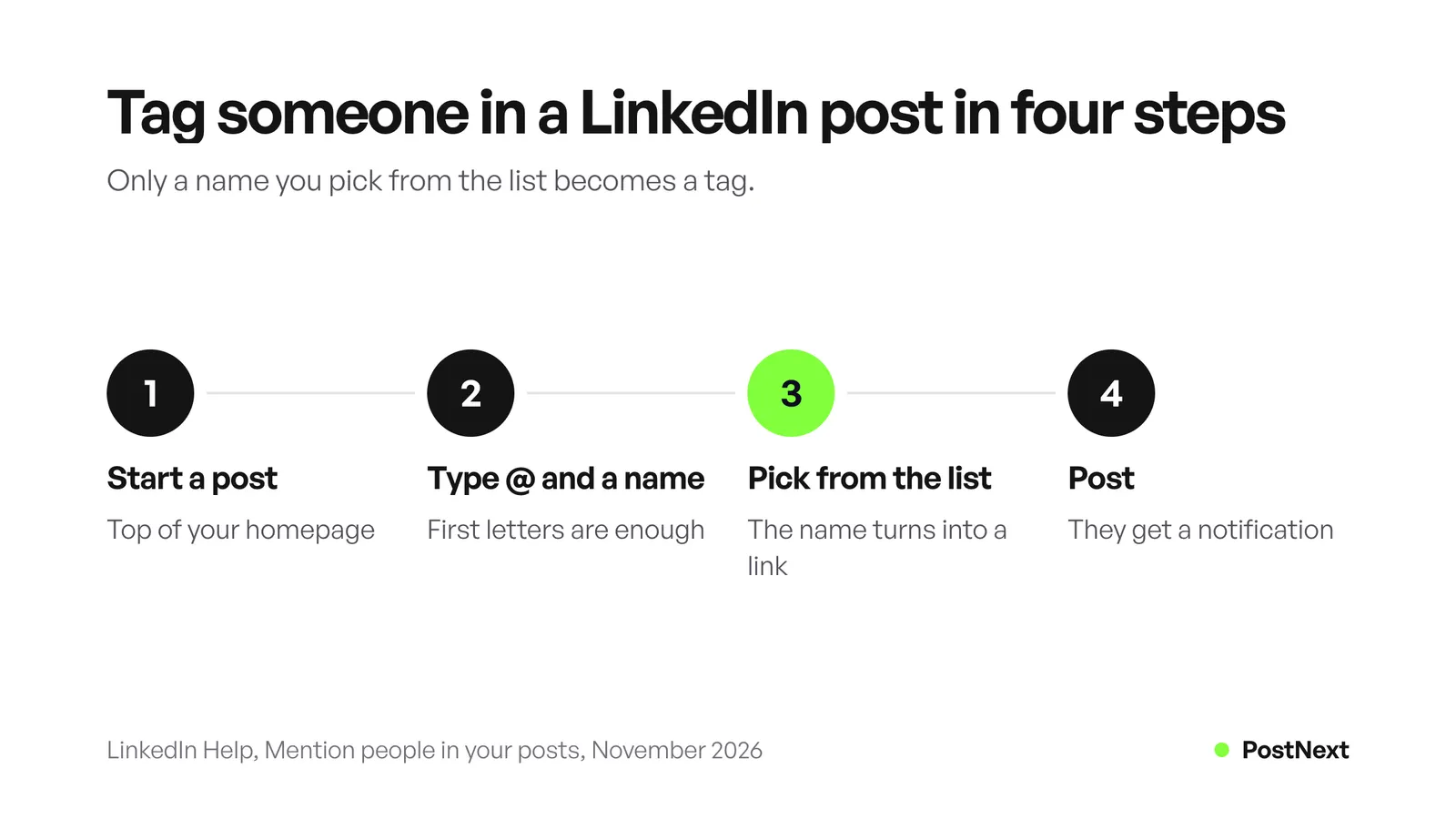
- Click Start a post at the top of your LinkedIn homepage.
- Type @ and begin typing the person’s name.
- Click the name in the list that appears.
- Keep writing, then click Post.
You can tag several people in one post. Repeat steps 2 and 3 for each name. Place each tag where the person fits the story, such as “thanks to @Jane Doe for the data,” rather than in a block at the end. A tag inside a sentence tells readers why that person is there.
If you are not sure how to start the post itself, PostNext’s guide on how to post on LinkedIn covers the first line, formatting and who can see the post. A post holds up to 3,000 characters, so check the LinkedIn character limit before you add tags to a long post.
How do you tag someone on LinkedIn on mobile?
In the LinkedIn app, tap Post in the navigation bar, then tap the @ icon on your keyboard and start typing a name. Tap the right name in the list and continue writing. Tap Post when you are done. The tagged person gets the same email and app notification as on a computer.
- Tap Post in the navigation bar.
- Tap the @ icon on your keyboard and type the first letters of the name.
- Tap the name in the list.
- Tap Post.
For a common name, type more of the name or add the person’s company after it before you tap. LinkedIn gives this tip on its own help page.
How do you mention someone in a LinkedIn comment?
Click Comment under the post, or click the Add a comment box. Type @ and begin typing the name, then click it in the list. Click Comment to publish. Replies work the same way: click Reply under a comment, type @, pick the name and click Reply.
Comment mentions are useful when you want to bring someone into a conversation they would add to, such as an expert on the topic or a colleague who did the work. One mention per comment is usually enough. A comment that tags five people with no message reads like a request for attention.
Some posts limit who can comment. LinkedIn lets members turn comments off, allow comments from connections only, or block certain members and Pages. If you cannot comment on a post, you cannot mention anyone in a comment there either.
How do you tag people in a LinkedIn photo?
Add the photo to a new post, then click Tag in the Edit your photo window. Click anywhere on the photo, type the person’s name, and click it to add the tag. You can tag up to 30 people per photo. Click Done, write your post and click Post. Each tagged member gets a notification and an email, unless they turned that notification off.
- Click Photo in the share box on your homepage and choose your images.
- In Edit your photo, click Tag, then click on the photo.
- Type the member’s name and click it.
- Repeat for each person, up to 30 per photo. For several photos, scroll to each one in the same window.
- Click Done, write your text and click Post.
Photo tags work well for events, team photos and award photos, where the people in the image are the story. Tag only the people who are in the photo. Members do not need to be your connections to be tagged. As the author, you can remove a tag after you post. For sizes that keep faces sharp, see our guide to the LinkedIn image size.
How do you tag a company on LinkedIn?
Type @ and the company’s Page name in your post or comment, then click the Page in the list. The Page name becomes a link to the Page. LinkedIn’s admin view for Pages lists mentions in its Activity tab, so the Page’s admins can see the mention there.
Use the Page’s exact name. A company called “Acme” may share its name with ten other Pages, so look for the logo in the list before you click. If the Page does not appear, type more of its name, or check the spelling on the company’s own Page.
Tag a company when the post is about something the company did: a product you used, an event it ran, a job you started there.
Why can’t I tag someone on LinkedIn?
The most common reason is a setting. Members can turn off mentions and tags, and LinkedIn tells you when a member cannot be mentioned. Other reasons: you typed the full name and skipped the list, the name is common and the right person is further down, or LinkedIn limited your mentions of people you are not connected with.
Try these fixes in order:
- Pick from the list. Only a name you select from the list becomes a tag. A name you type out in full stays plain text.
- Add the company. For a common name, type the person’s name and their company, for example “Jane Doe LinkedIn,” as LinkedIn suggests.
- Check the spelling. Copy the name from the person’s profile.
- Check their setting. If LinkedIn says the member cannot be mentioned, they turned mentions off. You cannot change this. Name them in plain text or message them instead.
- Connect first. LinkedIn says it may limit your ability to mention members you are not connected with.
To control your own setting, open Settings & Privacy, then Visibility, and under Visibility of your LinkedIn activity click Mentions, tags, and collaborations. When the toggle is off, members cannot mention or tag you in new posts, comments or photos. Mentions and tags made before stay in place.
Can you tag someone on LinkedIn after posting?
Yes. LinkedIn lets you edit your posts and comments to add a mention. Click the More icon in the upper-right corner of your post, click Edit post, type @ and pick the name, then click Save. The word Edited appears next to the post. Only the text can change, so you cannot add new photo tags by editing.
If you were tagged and do not want to be, click the More icon on the post or comment and choose Remove mention. Your name stays as plain text, but the link to your profile is removed. To remove a photo tag of yourself, click the Tag icon on the photo and then the trash icon next to your name. The person who tagged you is not notified.
Does tagging people on LinkedIn increase reach?
LinkedIn does not promise that a tag adds reach. Its help page on feed relevance lists “tagged people, companies, or topics” among the content signals, next to how often a post is viewed or engaged with. A tag notifies the person, and their reply or share is what carries the post further.
A tag helps when the tagged person has a reason to reply or share. Tag the person who did the work, the speaker you quote, or the team behind a launch. Avoid tagging people only to get their attention: a tag with no reason gets no reply. For more on what the feed rewards, see our guide to the LinkedIn algorithm.
Ask before you tag in sensitive posts. A job change, a health update or a client project may be news the other person has not shared yet.
Can you add LinkedIn mentions when you schedule posts?
PostNext schedules text and image posts to LinkedIn personal profiles. Its LinkedIn pages do not state that an @name in a scheduled post becomes a LinkedIn mention, so treat it as plain text. To tag someone, open the published post in LinkedIn, click Edit post, type @ and pick the name, then save.
LinkedIn lets you add a mention by editing, so this costs one minute after the post goes live. If a tag must notify the person at the exact moment of posting, publish that post from the LinkedIn composer, which can also schedule posts.
For posts without tags, you can plan the week on PostNext’s LinkedIn scheduler, and the free LinkedIn post preview shows where the “see more” cut falls in your text. Ideas for what to post are in our list of LinkedIn post ideas.
Frequently Asked Questions
How do you tag someone in a LinkedIn post?
Click Start a post, type @, then start typing the person’s name. Click the name in the list that appears, keep writing and click Post. The person gets an email and an app notification. In the app, tap the @ icon on your keyboard instead.
Can you tag someone on LinkedIn if you are not connected?
Yes. LinkedIn members do not need to be your connections to be mentioned or tagged. LinkedIn says it may limit your ability to mention members you are not connected with, to keep the site safe.
How do you tag a company on LinkedIn?
Type @ and the company’s Page name in your post or comment, then click the Page in the list. Check the logo before you click, because several Pages can share a name. The Page’s admins see the mention in the Activity tab of their admin view.
How many people can you tag in a LinkedIn photo?
You can tag up to 30 people per photo. Click Tag in the Edit your photo window, click on the photo, type the name and click it. For a post with several photos, scroll to each photo in the same window and tag it.
Why does a name not appear when I type @ on LinkedIn?
The member may have turned off mentions, and LinkedIn tells you when that is the case. The name may also be common, so add the person’s company after the name. Check the spelling on their profile, and pick the name from the list instead of typing it in full.
Can I add a tag after posting on LinkedIn?
Yes. Click the More icon on your post, choose Edit post, type @ and pick the name, then click Save. You can add mentions to comments the same way. You cannot add photo tags by editing, because only the text of a post can change.
How do I stop people tagging me on LinkedIn?
Open Settings & Privacy, then Visibility, then Mentions, tags, and collaborations, and turn the toggle off. Members can no longer mention or tag you in new posts, comments or photos. To remove an old mention, use Remove mention in the post’s More menu.
Sources
- LinkedIn Help, Mention people in your posts, checked November 2026.
- LinkedIn Help, Tag people in your photos, checked November 2026.
- LinkedIn Help, Choose whether members can mention, tag, or collaborate with you, checked November 2026.
- LinkedIn Help, Remove a mention or tag of yourself, checked November 2026.
- LinkedIn Help, Edit a shared post, checked November 2026.
- LinkedIn Help, Comment on posts and reply to a comment, checked November 2026.
- LinkedIn Help, Repost a post, checked November 2026: the @ mention works for people, companies and schools.
- LinkedIn Help, Post and share updates, checked November 2026.
- LinkedIn Help, LinkedIn Pages admin view features, checked November 2026.
- LinkedIn Help, LinkedIn relevance, checked November 2026.
- PostNext, LinkedIn scheduler, checked November 2026.