
To use Grok Bot for social media, create one Bot for the job, give it a written brief about your brand, and set routines that scan X, draft posts and report results. Grok Bot reads public X live and stages X posts as drafts you confirm (xAI docs, November 2026). For Instagram, LinkedIn, TikTok and Threads it needs a connected scheduler such as PostNext.
Key Takeaways
- Grok Bot is its own app. xAI’s docs call it “an agent with access to a real computer in the cloud”, separate from the Grok chat app. It signs in with a Cursor account.
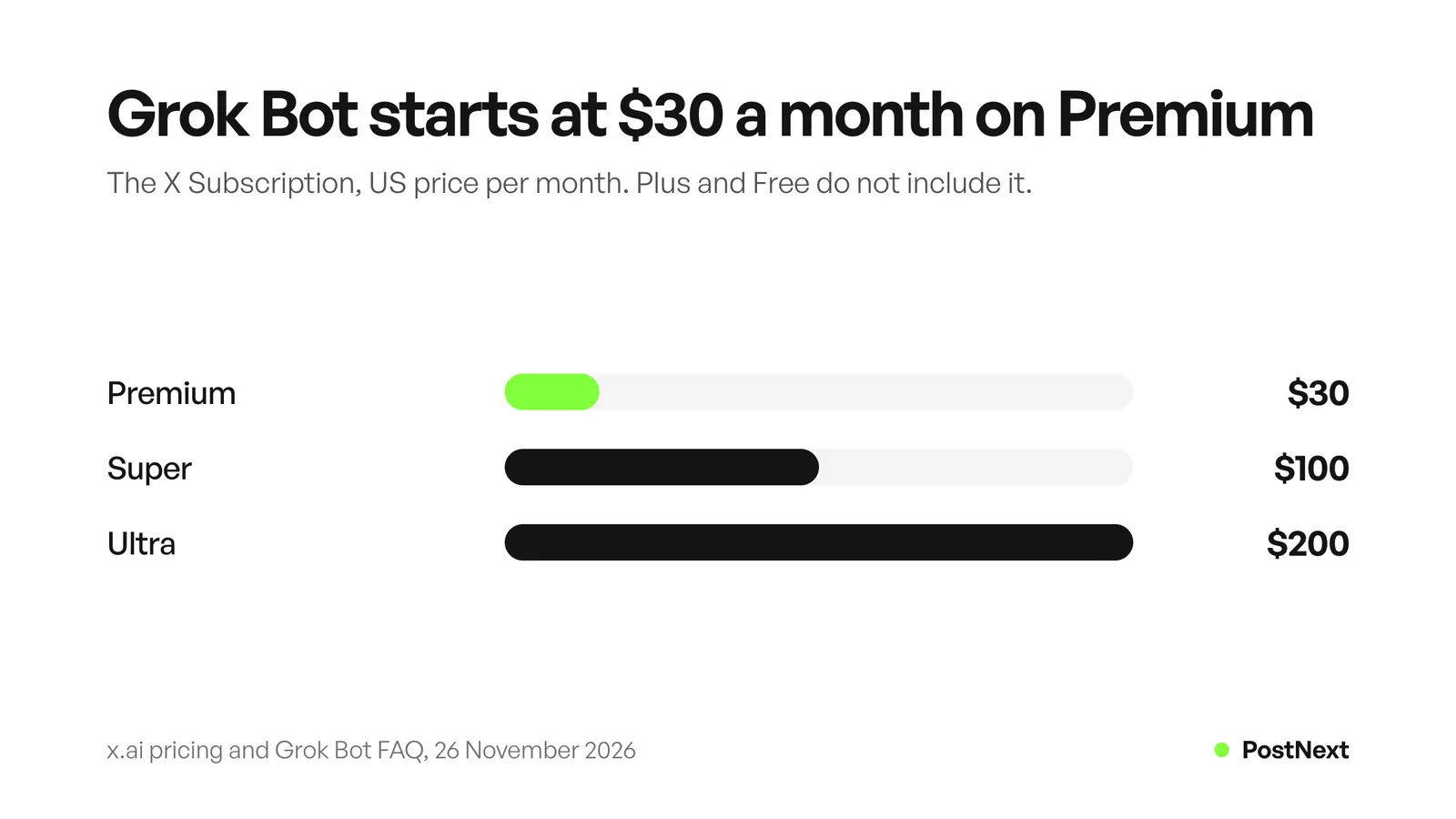
- It comes with Premium and up. The X Subscription includes Grok Bot on Premium ($30 a month), Super ($100) and Ultra ($200). Plus and Free do not include it (x.ai/pricing, 26 November 2026).
- It reads X without an account link. Bots can search public posts, count posts on a topic and check trends. That access is read-only.
- It posts to X only as drafts. The X plugin shows posts as draft cards with a Post button, and publishes only after you confirm.
- Routines run while your laptop is closed. One Bot can own up to 50 routines, at least 5 minutes apart. xAI warns that an hourly routine “can use a week of usage in a day”.
- Other networks need a connector. A custom connector to a scheduler gives the Bot a calendar for Instagram, LinkedIn, TikTok and Threads, with drafts you approve.
What is Grok Bot?
Grok Bot is xAI’s always-on agent. Each Bot works on a cloud computer that stays on when your laptop is closed, keeps notes about your preferences and runs routines on a schedule. xAI’s FAQ says Grok and Grok Bot “are two different apps”: the chat app answers questions, while a Bot does work over days and weeks.
Every Bot on your account shares one persistent cloud computer, with the same files, browser sessions and logins. xAI’s FAQ says the computer is “assigned per user, not per Bot” and adds a warning: “Do not use separate Bots as a security boundary.” For social media that matters, because a login you give one Bot is a login every Bot can use.
Grok Bot runs on macOS, Windows, Linux, iPhone (iOS 18 or later) and Android 9 or later. xAI does not let you pick the model: “Grok Bot picks the model for each task, and there is no model picker.” The earliest entries in the Grok Bot changelog are dated 12 August 2026.
What can Grok Bot do for social media?
Grok Bot can research X, draft posts for each network, make short images and clips, run that work on a schedule and send you the results. It cannot post to Instagram, LinkedIn or TikTok by itself without a browser login or a connected tool. The table maps a social media manager’s weekly jobs to what xAI documents, checked on 26 November 2026.
| Job | What Grok Bot does | Limit to know |
|---|---|---|
| Find what people say on X today | Searches and reads public X, counts recent posts on a topic, checks trends | Read-only, no sign-in needed |
| Draft posts for each network | Writes from your brief and saved skills | Memory “is not a source of truth”, keep the brief in a file |
| Post to X | X plugin stages posts as draft cards | Publishes only after you press Post |
| Post to Instagram, LinkedIn, TikTok, Threads | Through a custom connector to a scheduler, or its cloud browser | Sites “may still block automation” |
| Make images | Grok Imagine, ratios 1:1, 4:3, 3:4, 16:9, 9:16 | Counts toward your usage |
| Make short video | Clips of 1 to 15 seconds, 6 by default, 480p unless you ask for 720p | Not made for title cards, app demos or exact text |
| Run work on a schedule | Routines, up to 50 per Bot | At least 5 minutes apart |
| Tell you when something needs you | Desktop and phone notifications | Approvals from routines expire after about 30 minutes |
Sources: docs.x.ai/grok-bot (overview, FAQ, computer and apps, files and results, skills and routines), checked 26 November 2026.
The row that surprises most people is the video one. xAI’s own page says Bot clips are “not made for motion graphics, title cards… product or app demos… exact text”. A product walkthrough still needs a screen recording; the Bot can cut and caption it, but it should not invent it. The same rule holds for AI UGC, where an AI presenter is cut together with real product footage.
How do you set up Grok Bot for social media?
Set up Grok Bot for social media in five steps: install the app on an eligible plan, create one Bot that only does social media, give it a written brand brief, save your repeat tasks as skills, then add routines. Each step takes minutes. The brief is the step that decides whether the drafts sound like you or like everyone else.
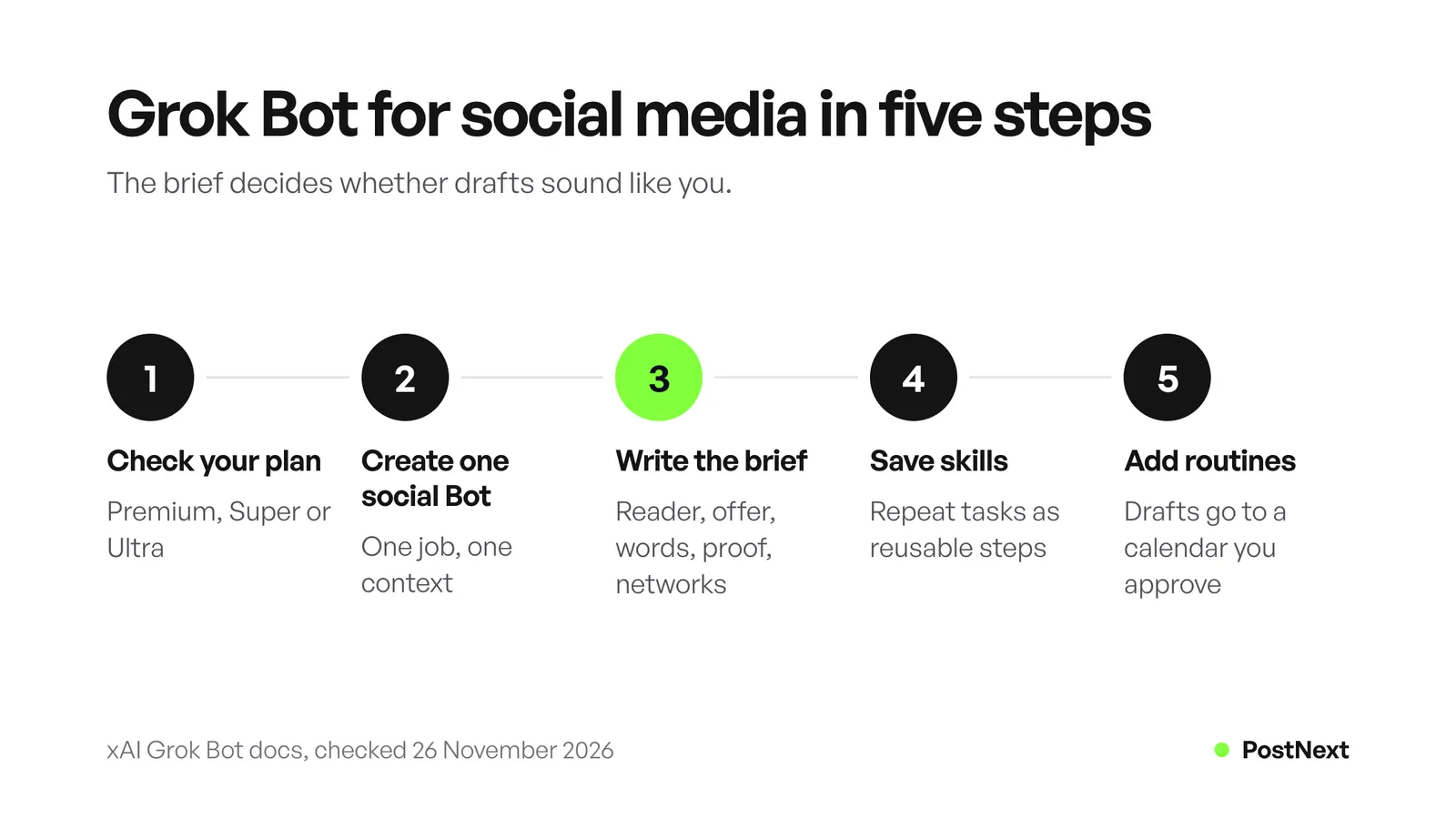
- Check your plan. Grok Bot is on Premium, Super and Ultra of The X Subscription. Older Cursor Pro, Pro+, Ultra, SuperGrok and X Premium+ subscriptions also work when linked, per xAI’s FAQ.
- Install and sign in. Download Grok Bot for your computer or phone and sign in with your Cursor account.
- Create a social media Bot. Name it for the job (“Social”). A Bot that also answers email and reviews code mixes context into your posts.
- Write the brief. Who you sell to, what you sell, the words you use and avoid, three posts you liked and why, the networks you post on and how often. Ask the Bot to save it as a file on its computer and to read it before every draft.
- Save skills. After a good session, say “Save the process we just used as a skill called weekly-plan”. xAI defines a skill as “a reusable set of instructions for how to do a task”.
xAI is also rolling out a way to teach by showing: you record one browser workflow, up to ten minutes, and the Bot turns it into a draft skill you review and test. Use it for jobs that are easier to show than to describe, such as how you pull numbers from an analytics page.

How do you give Grok Bot your brand voice?
Give Grok Bot your brand voice through a brief file it reads before each task, plus skills that hold your rules for each network. Do not rely on memory alone. xAI says a Bot “can retain stable preferences, role context, and summaries of prior work”, but also that “Memory is not a source of truth”, and there is no screen where you can see what it remembers.
A brief that works has five parts:
- Reader. One sentence on who reads your posts and what they want from you.
- Offer. What you sell, the price page, and the one thing a new reader should do.
- Words. Ten words you use, ten you never use, and whether you write “we” or “I”.
- Proof. Real numbers, customer quotes you have permission to use, and dates. The Bot may only use proof from this list.
- Networks. Which networks, how often, and the format each one gets (a thread on X, a carousel on Instagram, a text post on LinkedIn).
The proof list is the part most briefs skip. A Bot that has no list of real numbers will still write posts with numbers in them. Tell it in the brief: no statistic, customer or result that is not in this file.
How does Grok Bot find trends on X?
Grok Bot finds trends on X by searching public posts directly from its computer, with no X account connected. xAI’s docs say a Bot can “count recent posts on a topic, or check trends and news”, and that “This access is read-only and doesn’t sign in as you.” That makes Grok Bot the agent with the shortest path to what is being said on X today.
Three ways to use it:
- A morning scan. A routine on weekdays that lists the five topics in your niche with the most posts since yesterday, with two example posts each.
- Tag @bot. Tag @bot in a post or reply on X to hand that post to your Bot as a task, for example “turn this into a LinkedIn post for us”. xAI says it is not available in the UK, the EU, Australia, Iceland, Liechtenstein or Norway, and that posts with a video or GIF are not read.
- Your own account. The X plugin adds your timeline, DMs and bookmarks. xAI creates a developer account for you when you connect, and reads with your account “use your X rate limits”.
TikTok and Instagram are different. xAI documents no native connector for either. The Bot can open them in its cloud browser, but xAI warns that “A site may still block automation, require a new login, present a CAPTCHA”, and some sites “block traffic from cloud computers”. Plan your TikTok and Instagram research as a task you check, not one you trust to run unattended.
How do you post from Grok Bot to social media?
Grok Bot can reach your accounts three ways: the X plugin for X, a custom connector to a scheduler for every network the scheduler supports, or its cloud browser logged in to each site. Only the first two have a review step built in. The table compares them on what an owner cares about: what gets posted, who approves it and what can break.
| Route | Networks | Approval step | What can go wrong |
|---|---|---|---|
| X plugin | X | Draft card, publishes after you press Post | Only X |
| Custom connector to a scheduler (MCP) | Whatever the scheduler supports, for PostNext X, Instagram, LinkedIn, TikTok, Threads | Drafts on a calendar you approve; Bot approval rules | The connector key needs to be kept private |
| Cloud browser login | Any site that lets it in | Only the Bot’s own approval rules | Logins shared by all your Bots, CAPTCHAs, blocked cloud traffic |
Sources: docs.x.ai/grok-bot/computer-and-apps, x.ai/changelog/bot (13 November 2026), postnext.io/ai-agents/grok-bot, checked 26 November 2026.
X’s own creator guide to Grok Bot (posted by @XCreators on 6 November 2026) describes the third route: connect your social accounts and the Bot “uses its cloud computer to post on your behalf to X, YouTube, Instagram, and TikTok”. It works, but it puts every password on one shared computer and skips the calendar where you see the week before it goes out. A scheduler connection keeps your social passwords out of the Bot and puts each post where you can read it first.
How do you schedule Grok Bot routines for social media?
Schedule a Grok Bot routine by asking the Bot that should own it, in plain words: “Every weekday at 8:00 AM, scan X for posts about remote work and send me the top five topics.” Then check the routine’s When to run setting. xAI says routines “run in the cloud while your laptop is closed”, and a new routine waits for its first scheduled time instead of running at once.
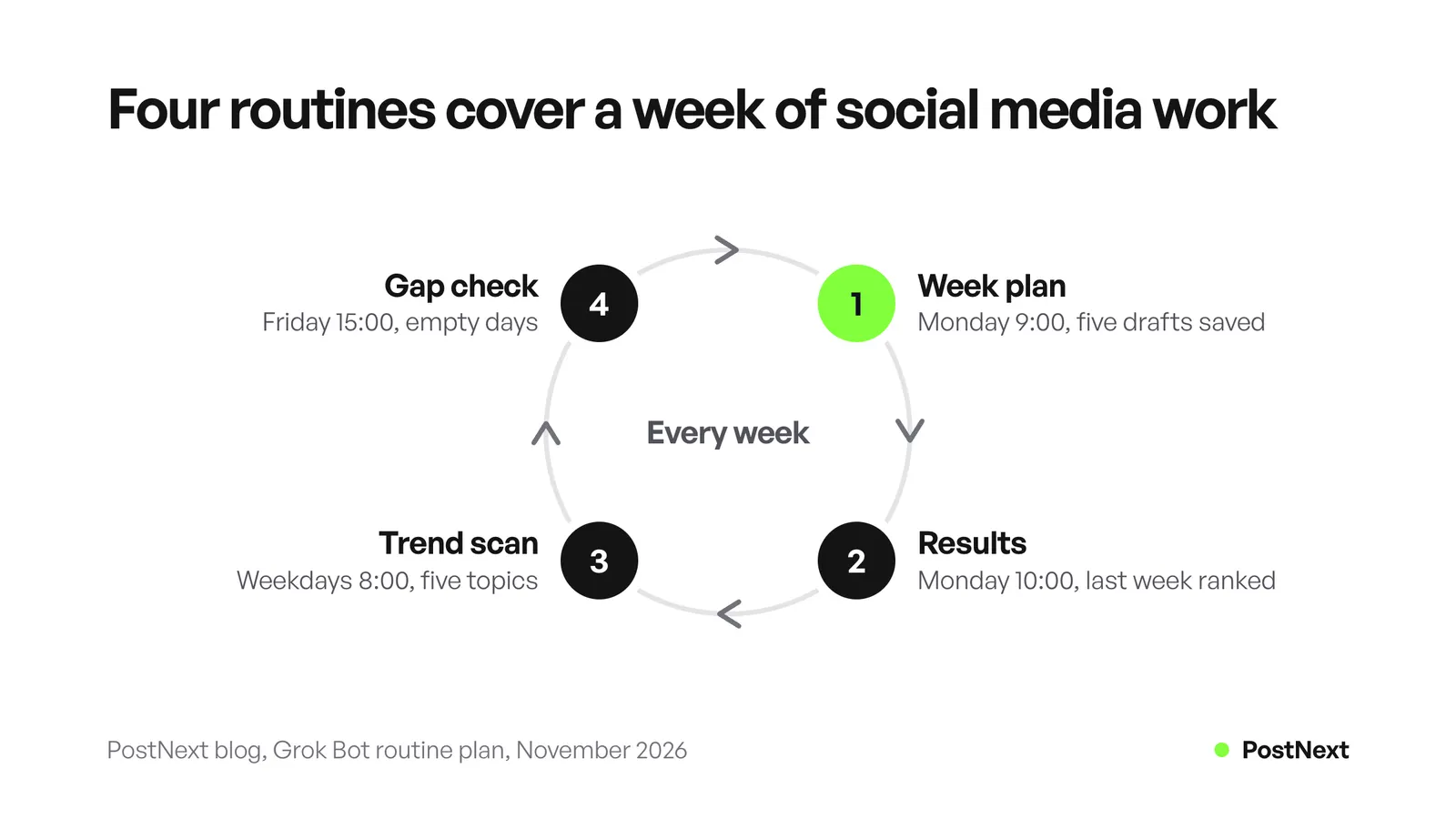
A week of social media work fits in four routines:
| Routine | When | What it sends you |
|---|---|---|
| Trend scan | Weekdays, 8:00 | Five topics with the most posts since yesterday, two examples each |
| Week plan | Monday, 9:00 | Five drafts for next week, saved as drafts in your scheduler |
| Gap check | Friday, 15:00 | Days next week with no post on the calendar |
| Results | Monday, 10:00 | Last week’s posts ranked by reach and replies, one sentence on why |
Four routines, run 8 times a week in total. Arithmetic from the table above, not an xAI figure.
Keep the count low. xAI’s limits are generous (50 routines per Bot, schedules at least 5 minutes apart, 200 runs an hour per routine), but usage is the real cap: Grok Bot draws from the same weekly pool as Cursor and the Grok apps, and xAI’s own docs warn that “An hourly schedule… can use a week of usage in a day.” A routine that runs every hour to look for viral posts costs far more than a daily one that finds the same posts a few hours later.
Before you trust a routine, press Test. xAI notes that Test “performs real work”, so test a routine that writes drafts, not one that publishes.
How do you stop Grok Bot from posting without you?
Stop Grok Bot from posting without you by keeping publishing behind approval: add Ask first rules for posting and sending, leave Auto Review on, and have the Bot save drafts to a scheduler instead of publishing. xAI’s own advice is “Keep sending, publishing, purchasing, deletion, and production changes behind approval.” An approval does not undo work that already ran.
The settings that do the work:
- Ask first rules. Up to 20 Ask first rules and 20 Allow automatically rules, 1,000 characters each. Write one that covers every post: “Ask me before you publish, schedule or send anything on any social network.”
- Approval prompts. Each action can be allowed once, always allowed or denied. Approvals for work that started without you expire after about 30 minutes, so a 7:00 routine that needs you at 7:40 has stopped.
- Notifications. Turn them on per Bot. xAI says your phone is notified about 3 minutes after a Bot needs input.
- Drafts first. With PostNext, every post an agent makes starts as a draft on your calendar, and the PostNext MCP never publishes a draft on its own.
Training is a separate question. xAI says “Training opt-out follows the applicable Cursor account and privacy settings”, so check those settings before you paste customer data into a brief.
How much does it cost to use Grok Bot for social media?
Grok Bot costs $30 a month on The X Subscription Premium plan, the cheapest plan that includes it, as of 26 November 2026. Super is $100 and Ultra $200. All three share one weekly usage pool across chat, Imagine, voice and Bot, and prepaid credit covers use past the pool (x.ai/pricing and the Grok Bot FAQ).
What you pay for in practice is usage, not features. A routine that runs once a day uses a small part of the pool; one that runs every hour, makes images or watches videos uses much more. Start with the four routines above, check Usage at grok.com/dashboard after a week, then add more.
A scheduler is a second cost only if you outgrow its free plan. PostNext’s MCP access is in every plan, the Free plan included (1 channel and 10 scheduled posts a month), and paid plans add channels and posts (postnext.io/pricing, November 2026).
How does PostNext work with Grok Bot?
PostNext connects to Grok Bot as a custom connector, so your Bot can plan posts, save them as drafts on the PostNext calendar and schedule them to X, Instagram, LinkedIn, TikTok and Threads after you approve. Setup takes about three minutes and uses a PostNext API key, not your social passwords. The steps below are from the Grok Bot setup guide, checked against xAI’s docs on 18 November 2026.
- In PostNext, open your account, then API keys, and create a key. You see it only once.
- In the Grok Bot desktop app, open Connect apps, choose Add a custom connector, then Remote HTTPS.
- Name it PostNext, paste
https://mcp.postnext.io/apias the server URL and add the headerAuthorization: Bearer apikey_YOUR_KEY. Select Add plugin. - Ask your Bot for a first, small job: “Plan 3 posts for next week about our new product. Save them as drafts.”
The drafts appear on your social media calendar, where you edit, approve or delete each one. Posts go out at their time even after you close Grok Bot. To stop, delete the key in PostNext; tokens also expire after 30 days without use. The same connector works from other agents too, which the PostNext MCP server page lists.
If you are still choosing an assistant, our Grok vs Claude vs ChatGPT comparison puts the three side by side on prices, live X data and scheduling. For how agents connect to social accounts in general, see what a social media AI agent is. The same brief-and-routine method works on Meta’s agent, covered in how to use Meta Muse for social media marketing.
Frequently Asked Questions
Can Grok Bot post to social media by itself?
Grok Bot can post to X through its X plugin, which shows each post as a draft card and publishes only after you press Post. For Instagram, LinkedIn, TikTok and Threads it needs a connected scheduler or a login in its cloud browser. xAI warns that some sites block automation from cloud computers.
Is Grok Bot the same as Grok?
No. xAI’s FAQ says Grok, the chat app, and Grok Bot “are two different apps”. Grok answers questions in a chat. Grok Bot is an agent with its own cloud computer that keeps working, runs routines and uses connected tools. Grok Bot signs in with a Cursor account.
Which plan do I need for Grok Bot?
You need The X Subscription Premium ($30 a month), Super ($100) or Ultra ($200), as listed on x.ai/pricing on 26 November 2026. The Plus plan does not include Grok Bot. Older SuperGrok, X Premium+ and Cursor Pro subscriptions also work when linked.
How many routines can a Grok Bot run?
A Bot can own up to 50 routines, and each schedule must be at least five minutes apart, per xAI’s skills and routines page. Usage is the practical limit: routines draw from your weekly pool, and xAI says an hourly schedule can use a week of usage in a day.
Can Grok Bot see what is trending on TikTok and Instagram?
Not directly. xAI documents a read-only search of public X but no native TikTok or Instagram connector. The Bot can open those sites in its cloud browser, where logins, CAPTCHAs and blocked cloud traffic can stop it. Check that research by hand.
How do I connect Grok Bot to a social media scheduler?
Add the scheduler as a custom connector: in Grok Bot open Connect apps, choose Add a custom connector, then Remote HTTPS, and paste the scheduler’s MCP server URL with an API key header. For PostNext the URL is mcp.postnext.io/api and the key comes from your account’s API keys page.
Sources
- xAI, Grok Bot docs: overview, FAQ, Bots, computer and apps, skills, routines and automations, files and results, approvals, security and privacy, settings and notifications, tag @bot on X and Grok Bot on The X Subscription (checked 26 November 2026).
- xAI, pricing, Introducing The X Subscription, Grok Bot now works with X and the Grok Bot changelog (checked 26 November 2026).
- X Creators, “The ultimate guide to Grok Bot for creators”, post on X, 6 November 2026 (x.com/XCreators/status/2118843705327026400).
- PostNext, Grok Bot setup guide, MCP server and pricing (checked 26 November 2026).