How to Update Card Details
How to Update Card Details
Keeping your payment card up to date prevents interruptions to your PostNext subscription. You can update the card on file at any time from your account billing settings.
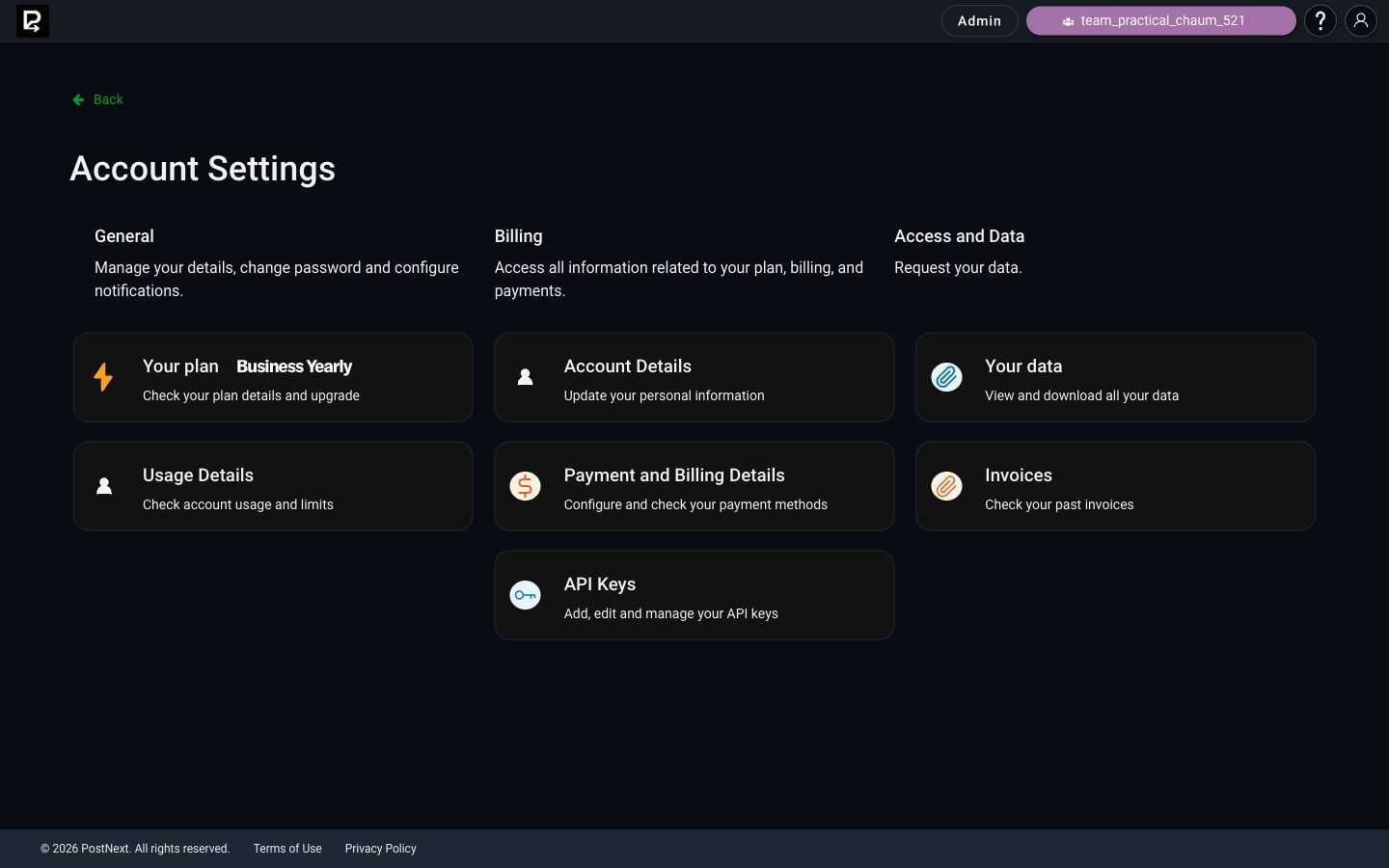
Steps to update your card
- Open your account billing settings.
- Locate the payment method section and choose the option to update or replace the card.
- Enter your new card number, expiration date, CVC, and billing address.
- Confirm and save the new card details.
Your next billing cycle will charge the updated card.
If the new card is still declined
- Double-check that all card details are entered correctly.
- Try a different card if the issue persists.
- Contact your bank to confirm there are no blocks on the card.
For more detail on why a card may be declined, see Understanding Declined Card Payments.